> ## Documentation Index
> Fetch the complete documentation index at: https://basedash.com/docs/llms.txt
> Use this file to discover all available pages before exploring further.
# Groups
> Organize members into teams to share work, control data access, and give the AI team-specific context
export const action_0 = "create and manage groups"
export const details_0 = undefined
A group is a named set of members, like Finance or Support, that you can share work with, grant data access to, and give its own AI context.
Only admins can {action_0}. {details_0}
## Overview
Instead of sharing each dashboard with people one by one, share it with a group. When someone joins or leaves the team, update the group once and their access follows.
Groups are used for:
* **Sharing**: give a group access to [dashboards](/docs/features/dashboards#sharing-and-collaboration), dashboard folders, [chats](/docs/features/chat#share-a-chat), and [automations](/docs/features/automations).
* **Default access**: share new dashboards, chats, or automations with the creator's groups automatically, using the **Creator's groups** default audience.
* **Data access**: choose which groups can query each data source, and which schemas, tables, and columns they can see. See [data source access control](/docs/administration/data-source-access-control).
* **MCP connectors**: choose which groups can use each [MCP connector](/docs/features/mcp-connectors).
* **AI context**: give the AI instructions that apply only to members of the group. See [group context](/docs/features/ai-context#group-context).
Admins always have full access, whatever groups they're in.
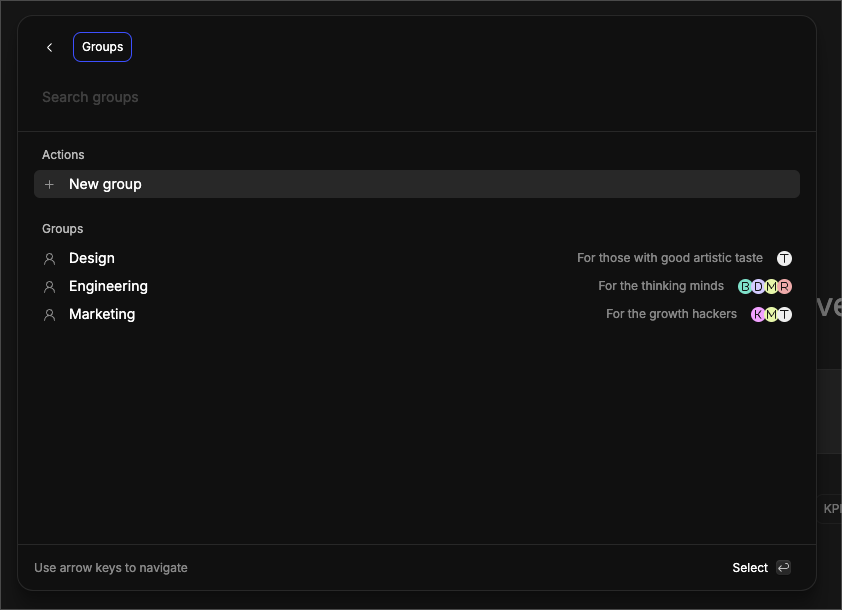 ## Create a group
1. Open **Settings → Groups** and click **Create group**.
2. Enter a **Name**, for example "Engineering" or "Marketing".
3. Optionally, add **AI context** that should be included in AI interactions for this group's members.
4. Click **Create**.
Group names must be unique. Names aren't case-sensitive, so "Finance" and "finance" count as the same name.
## Add and remove members
1. Open **Settings → Groups** and click a group to expand it.
2. Under **Members**, click **Add** and search for a member. You can add people who haven't accepted their invite yet.
3. To take someone out of the group, click **Remove** next to their name.
You can also manage a person's groups from **Settings → Members**: open the menu on their row and use **Groups**. When you invite people, you can add them to groups right away.
## Edit or delete a group
Click a group to expand it and edit its name or AI context. Changes save automatically.
To delete a group, open its menu and choose **Delete group**. Members lose any access and AI context they had through the group. Their own direct access isn't affected.
## Sync groups from your identity provider
* **SCIM**: on the Enterprise plan, [SCIM](/docs/administration/scim) can create groups and keep their membership in sync with Okta or Microsoft Entra ID.
* **Sign-in tokens**: if the tokens you use for [embedded](/docs/developers/embedding) or SSO users include group names, Basedash adds users to matching groups when they sign in.
## Limits
Group AI context can be up to 20,000 characters.
## API
Admins can list, create, update, and delete groups, and add members to a group, with the [public API](/docs/api-reference/groups/list-groups). To remove a member from a group, use the app or SCIM.
## FAQ
For data sources, a member gets the highest level from any grant that
applies to them. See [data source access
control](/docs/administration/data-source-access-control) for details.
On Postgres, yes. Basedash passes each person's group names to your
database, so your [row-level security](/docs/administration/row-level-security)
policies can filter rows by group. If you rename a group, update any
policies that refer to it.
## Related
Invite people and choose their role.
Control who can query each data source.
Add context for groups, members, and data sources.
Sync members and groups from your identity provider.
This documentation is built and hosted on [Mintlify](https://mintlify.com), a developer documentation platform.
## Create a group
1. Open **Settings → Groups** and click **Create group**.
2. Enter a **Name**, for example "Engineering" or "Marketing".
3. Optionally, add **AI context** that should be included in AI interactions for this group's members.
4. Click **Create**.
Group names must be unique. Names aren't case-sensitive, so "Finance" and "finance" count as the same name.
## Add and remove members
1. Open **Settings → Groups** and click a group to expand it.
2. Under **Members**, click **Add** and search for a member. You can add people who haven't accepted their invite yet.
3. To take someone out of the group, click **Remove** next to their name.
You can also manage a person's groups from **Settings → Members**: open the menu on their row and use **Groups**. When you invite people, you can add them to groups right away.
## Edit or delete a group
Click a group to expand it and edit its name or AI context. Changes save automatically.
To delete a group, open its menu and choose **Delete group**. Members lose any access and AI context they had through the group. Their own direct access isn't affected.
## Sync groups from your identity provider
* **SCIM**: on the Enterprise plan, [SCIM](/docs/administration/scim) can create groups and keep their membership in sync with Okta or Microsoft Entra ID.
* **Sign-in tokens**: if the tokens you use for [embedded](/docs/developers/embedding) or SSO users include group names, Basedash adds users to matching groups when they sign in.
## Limits
Group AI context can be up to 20,000 characters.
## API
Admins can list, create, update, and delete groups, and add members to a group, with the [public API](/docs/api-reference/groups/list-groups). To remove a member from a group, use the app or SCIM.
## FAQ
For data sources, a member gets the highest level from any grant that
applies to them. See [data source access
control](/docs/administration/data-source-access-control) for details.
On Postgres, yes. Basedash passes each person's group names to your
database, so your [row-level security](/docs/administration/row-level-security)
policies can filter rows by group. If you rename a group, update any
policies that refer to it.
## Related
Invite people and choose their role.
Control who can query each data source.
Add context for groups, members, and data sources.
Sync members and groups from your identity provider.
This documentation is built and hosted on [Mintlify](https://mintlify.com), a developer documentation platform.