> ## Documentation Index
> Fetch the complete documentation index at: https://basedash.com/docs/llms.txt
> Use this file to discover all available pages before exploring further.
# AI context
> Add custom context to improve AI understanding of your organization and data
AI context allows you to enhance AI understanding by providing additional information about your organization, data sources, schemas, tables, and columns. This helps the AI generate more accurate and relevant responses when creating charts, automations, or answering questions in chat.
## Automatic AI context
Basedash automatically provides the AI with comprehensive context about your data sources, including:
* **Data source structure**: Table names, column names, and data types from all connected databases and warehouses
* **Table and column descriptions**: Any existing comments or descriptions from your source databases (PostgreSQL and Snowflake comments, BigQuery descriptions)
* **Semantic layer context**: If you use a semantic layer like dbt, Basedash includes any documentation, descriptions, and metadata defined in your dbt models
This automatic context ensures the AI has a foundational understanding of your data structure without requiring any manual setup.
## How AI interprets your data
Basedash performs automatic pre-processing when you connect your data sources to understand the structure of your schemas, tables, and columns. The AI can analyze data types, relationships, and basic metadata to generate queries and visualizations.
However, custom context provides the **business intelligence** that goes beyond the technical structure. It helps the AI understand:
* How your organization operates and what metrics matter most
* What your data actually represents in business terms
* Internal terminology and KPIs specific to your company
* The context and meaning behind complex data structures
This additional layer of understanding enables the AI to generate more relevant, business-focused insights rather than just technical queries.
## How it works
Custom context is automatically considered by the AI whenever you create charts, chat, or automations in Basedash. Global context applies to every conversation within your organization. You can also add group context to control how the AI works for different teams. Data source, schema, table, and column-level context is used when that specific data is referenced by the AI.
## Accessing custom context
### Global context
Global context applies to every AI interaction in the organization. Admins edit it in **Settings → AI context**, in the **Global context** section. Include information about your company, how your data is structured, or how you calculate metrics. Changes save automatically.
Admins can also ask chat to update global context for them.
### Skills
Skills are reusable sets of instructions that agents load only when they're relevant, such as how to run a retention analysis or how the finance team defines revenue. Unlike global context, which is always loaded in full, each agent sees the list of skills and reads a skill's instructions on demand. Admins manage skills in **Settings → AI context**.
See [Skills](/docs/features/skills) for how to create skills, examples, and limits.
### Group context
Group context applies to members of a specific group. This is useful when different teams need the AI to behave differently, such as:
* **Finance**: Explain reporting conventions and preferred accounting terminology
* **Support**: Explain ticket lifecycle, common issue categories, and internal abbreviations
* **Sales**: Define pipeline stages and how to interpret deal status fields
To edit group context, an admin opens **Settings → Groups**, clicks a group, and edits its **AI context** field. See [Groups](/docs/administration/groups).
### Personal context
Personal context applies only to you, in the current organization. Use it for preferences, shorthand, or recurring instructions, like "Show currency in EUR" or "Keep summaries to three bullet points."
To edit it, open **Settings → Profile** and fill in **Personal AI context**. You can also ask chat to remember a preference, and it updates your personal context for you.
### Context in chat
In the chat input, click the **+** button. Admins see an **AI context** option that opens the organization's AI context settings. Everyone can upload files to give the AI extra context for that chat.
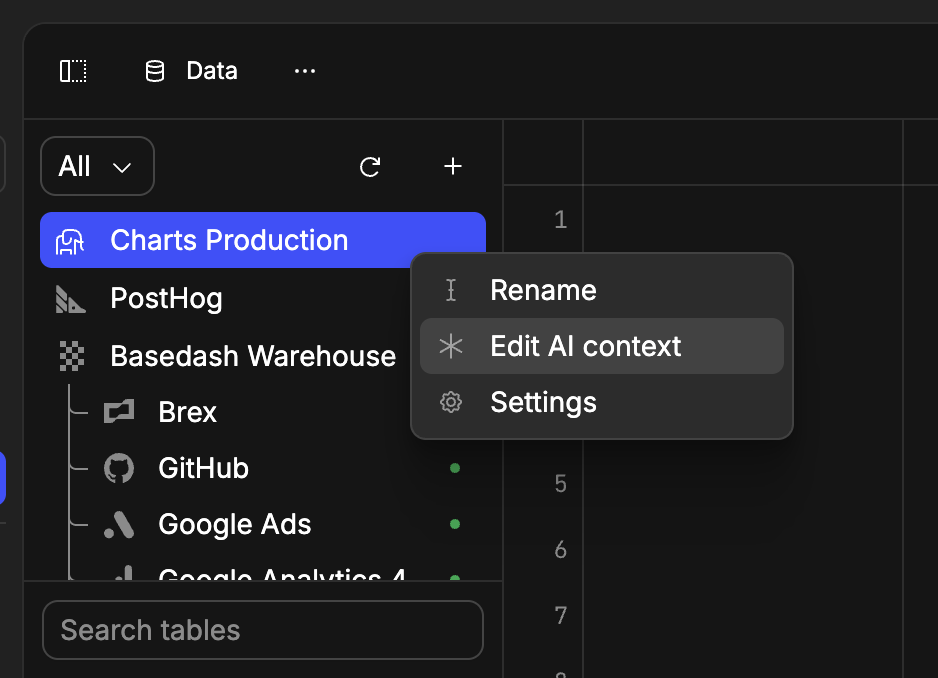
### Data source context
You can also add context tied to a specific data source, schema, table, or column.
1. Navigate to the **Data** page
2. Right-click on a data source, schema, table, or column
3. Select **"Edit AI context"**
 ## Limits
Global context and data source context can each be up to 50,000 characters.
Group context, personal context, and [insights](/docs/features/insights) context
can each be up to 20,000 characters.
## Best practices
### Start with global context
We recommend beginning with global context as one of your first setup steps. This provides the AI with fundamental understanding of your business, terminology, and key metrics.
### Define internal terminology
Global context is a great place to define internal terminology. This helps the AI understand your business, terminology, and key metrics.
Use custom context to explain:
* **Internal KPI terminology**: How your organization names and discusses important metrics
* **User terminology**: How you refer to different user types (e.g., "signups," "active users," "premium customers")
* **Business jargon**: Company-specific terms and definitions
Use [Models](/docs/features/models) for the executable calculations and business logic behind metrics. Once both are in place, the AI can understand your terminology and apply the same modeled logic across interactions.
## Getting started
We recommend adding custom context as part of your initial Basedash setup. This ensures the AI has the right context from the beginning, leading to more accurate and relevant responses.
For step-by-step guidance, see our [getting started guide](/docs/getting-started/quickstart) which includes custom context setup as part of the recommended workflow.
## Examples
### Organization context
```
Our company is a SaaS platform for e-commerce businesses.
We refer to our customers as "merchants" and their customers as "shoppers."
"MRR" refers to Monthly Recurring Revenue from subscription plans.
"Churn" means when a merchant cancels their subscription.
```
### Schema context
```
The "analytics" schema contains event tracking data from our platform.
The "billing" schema contains subscription and payment information.
The "support" schema contains customer support ticket data.
```
### Group context
```
This group is the finance team.
Use conservative language in summaries.
If there is ambiguity in a metric, ask a clarifying question instead of assuming.
"Revenue" means GAAP revenue (not bookings).
"Churn" should be computed as logo churn unless explicitly asked for revenue churn.
```
### Column context
```
The "metadata" JSON column contains user preferences and settings.
The "status" column uses values: "active", "suspended", "cancelled".
The "created_at" timestamp is in UTC timezone.
```
This documentation is built and hosted on [Mintlify](https://mintlify.com), a developer documentation platform.
## Limits
Global context and data source context can each be up to 50,000 characters.
Group context, personal context, and [insights](/docs/features/insights) context
can each be up to 20,000 characters.
## Best practices
### Start with global context
We recommend beginning with global context as one of your first setup steps. This provides the AI with fundamental understanding of your business, terminology, and key metrics.
### Define internal terminology
Global context is a great place to define internal terminology. This helps the AI understand your business, terminology, and key metrics.
Use custom context to explain:
* **Internal KPI terminology**: How your organization names and discusses important metrics
* **User terminology**: How you refer to different user types (e.g., "signups," "active users," "premium customers")
* **Business jargon**: Company-specific terms and definitions
Use [Models](/docs/features/models) for the executable calculations and business logic behind metrics. Once both are in place, the AI can understand your terminology and apply the same modeled logic across interactions.
## Getting started
We recommend adding custom context as part of your initial Basedash setup. This ensures the AI has the right context from the beginning, leading to more accurate and relevant responses.
For step-by-step guidance, see our [getting started guide](/docs/getting-started/quickstart) which includes custom context setup as part of the recommended workflow.
## Examples
### Organization context
```
Our company is a SaaS platform for e-commerce businesses.
We refer to our customers as "merchants" and their customers as "shoppers."
"MRR" refers to Monthly Recurring Revenue from subscription plans.
"Churn" means when a merchant cancels their subscription.
```
### Schema context
```
The "analytics" schema contains event tracking data from our platform.
The "billing" schema contains subscription and payment information.
The "support" schema contains customer support ticket data.
```
### Group context
```
This group is the finance team.
Use conservative language in summaries.
If there is ambiguity in a metric, ask a clarifying question instead of assuming.
"Revenue" means GAAP revenue (not bookings).
"Churn" should be computed as logo churn unless explicitly asked for revenue churn.
```
### Column context
```
The "metadata" JSON column contains user preferences and settings.
The "status" column uses values: "active", "suspended", "cancelled".
The "created_at" timestamp is in UTC timezone.
```
This documentation is built and hosted on [Mintlify](https://mintlify.com), a developer documentation platform.