

Automatic AI context
Basedash automatically provides the AI with comprehensive context about your data sources, including:- Data source structure: Table names, column names, and data types from all connected databases and warehouses
- Table and column descriptions: Any existing comments or descriptions from your source databases (PostgreSQL and Snowflake comments, BigQuery descriptions)
- Semantic layer context: If you use a semantic layer like dbt, Basedash includes any documentation, descriptions, and metadata defined in your dbt models
How AI interprets your data
Basedash performs automatic pre-processing when you connect your data sources to understand the structure of your schemas, tables, and columns. The AI can analyze data types, relationships, and basic metadata to generate queries and visualizations. However, custom context provides the business intelligence that goes beyond the technical structure. It helps the AI understand:- How your organization operates and what metrics matter most
- What your data actually represents in business terms
- Internal terminology and KPIs specific to your company
- The context and meaning behind complex data structures
How it works
Custom context is automatically considered by the AI whenever you create charts, chat, or automations in Basedash. Global context applies to every conversation within your organization. You can also add group context to control how the AI works for different teams. Data source, schema, table, and column-level context is used when that specific data is referenced by the AI.Accessing custom context
Global context
Global context applies to all AI interactions in the organization. You can access global context through the organization dropdown in the top-left corner.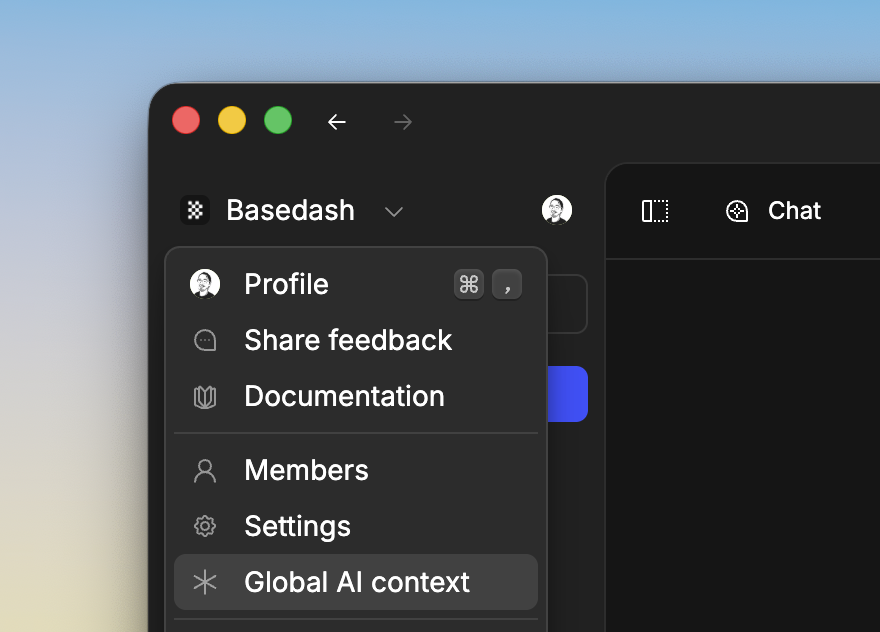
Skills
Skills are reusable bundles of instructions that you write once and every Basedash AI surface can read on demand. Unlike global context, which is always loaded in full by every agent, skills sit in a catalogue: each agent sees the skill names available and loads the full instructions only when a skill is relevant to the current request. Skills are picked up across chat, chart generation, dashboards, automations, and insights, so you can teach Basedash about a concept once instead of repeating the same context in every prompt.When to use skills
Skills are best for modular playbooks focused on a single concept. Common patterns:- Analysis methods — Explain how to investigate retention, revenue changes, funnel performance, or experiment results
- Team conventions — Encode the rules a specific team follows (finance uses GAAP revenue; growth uses calendar weeks in UTC)
- Analytical playbooks — Describe how to write A/B reports, triage support tickets, or summarize cohorts
- Chart preferences — Specify preferred chart types and breakdowns for a particular topic
Managing skills
Skills are managed by organization admins. To create or edit skills:- Open Settings → AI context
- In the Skills section, click New skill (or click an existing skill to edit it)
- Give the skill a clear, descriptive name (for example, “Activation rate” or “Support triage”)
- In the Instructions field, describe in plain language how the AI should use this skill
- Click Save changes
Skills vs. global context
For most teams, both work well together: global context for the handful of facts that apply to every conversation, and skills for the richer concepts you want the AI to apply consistently when they come up.
Auditing which skills the AI used
When an agent loads a skill, you can see it in the thinking trace. Look for the Reading<skill name> skill step — clicking it expands to show the skill’s full instructions. This makes it easy to verify which skills shaped any given answer.
Group context
Group context applies to users in a specific group. This is useful when different teams need the AI to behave differently, such as:- Finance: Explain reporting conventions and preferred accounting terminology
- Support: Explain ticket lifecycle, common issue categories, and internal abbreviations
- Sales: Define pipeline stages and how to interpret deal status fields
- Open the command menu
- Go to Groups
- Select a group
- Choose Edit AI context
Context in chat
You can also add context directly from the chat interface. Look for the “Global context” button (asterisk icon) in the top-left of the chat input.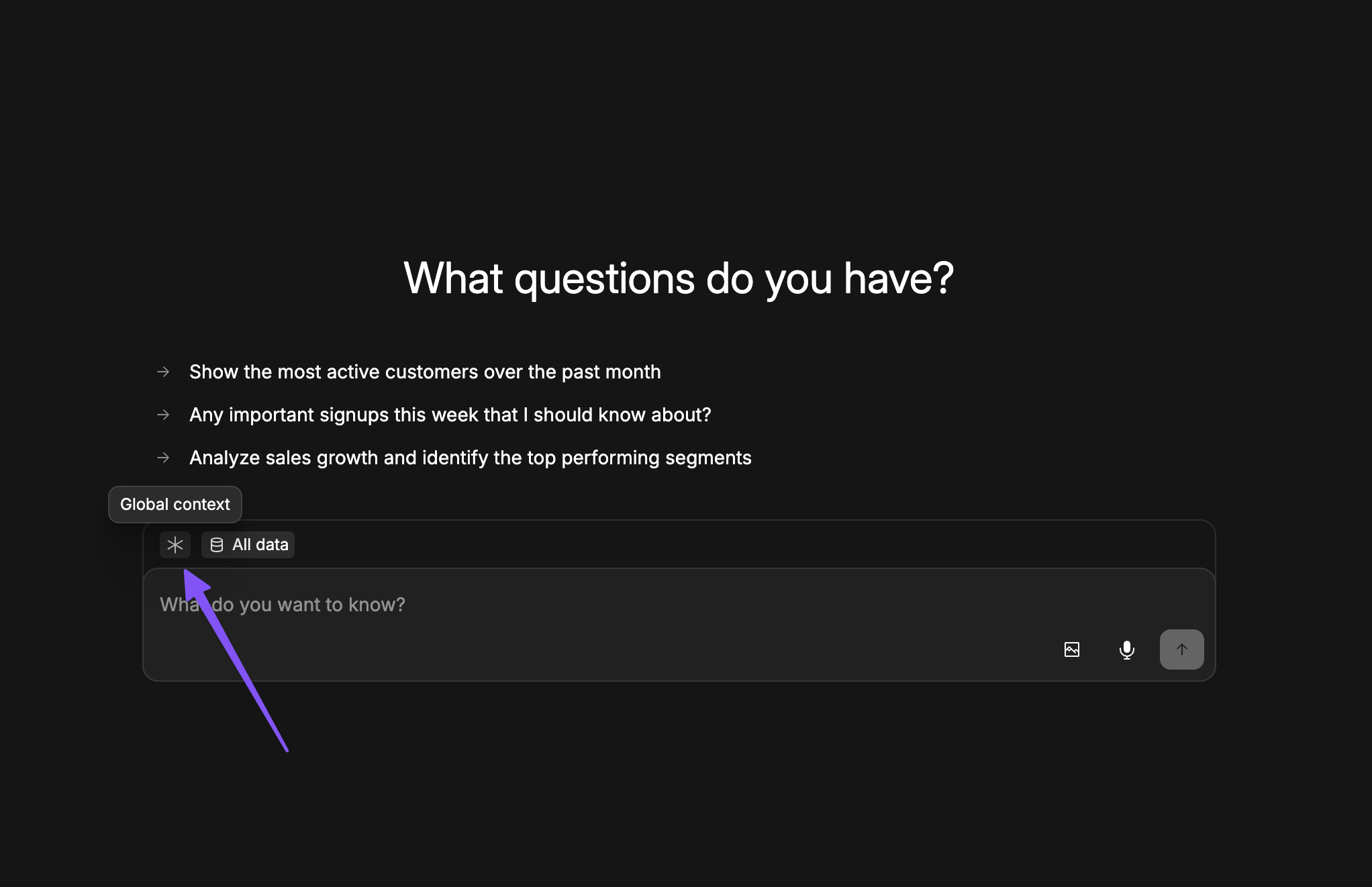
Data source context
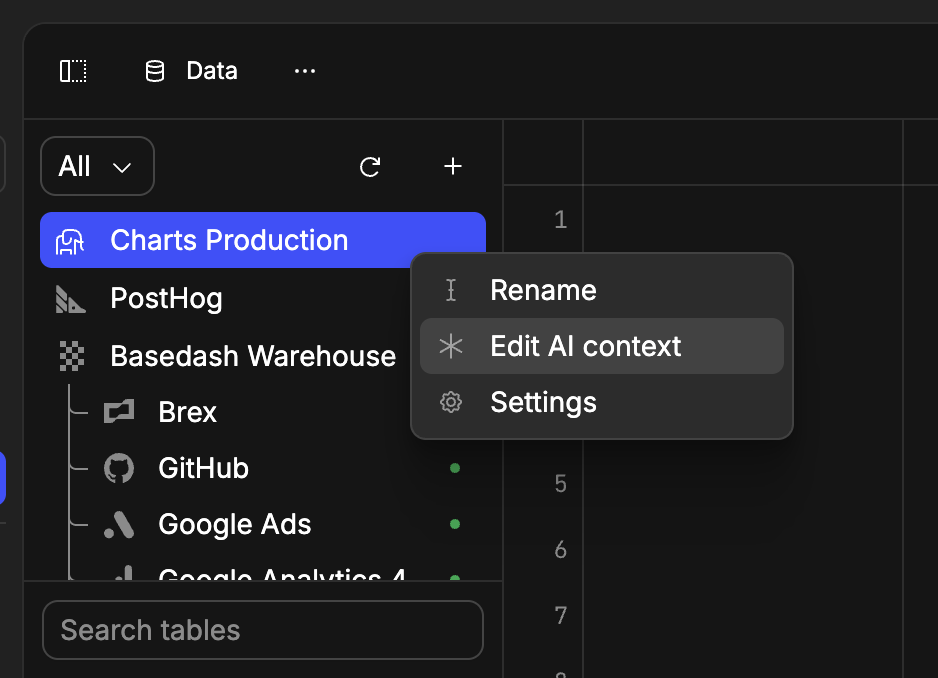
You can also add context tied to a specific data source, schema, table, or column.- Navigate to the Data page
- Right-click on a data source, schema, table, or column
- Select “Edit AI context”
Best practices
Start with global context
We recommend beginning with global context as one of your first setup steps. This provides the AI with fundamental understanding of your business, terminology, and key metrics.Define internal terminology
Global context is a great place to define internal terminology. This helps the AI understand your business, terminology, and key metrics. Use custom context to explain:- Internal KPI terminology: How your organization names and discusses important metrics
- User terminology: How you refer to different user types (e.g., “signups,” “active users,” “premium customers”)
- Business jargon: Company-specific terms and definitions