

General questions
What is Basedash?
Basedash is an AI-native business intelligence platform that lets you create beautiful charts and dashboards using natural language. Instead of writing SQL queries or using complex chart builders, you can simply describe what you want to see in plain English.How does Basedash differ from traditional BI tools?
Basedash uses AI to handle the technical aspects of data analysis, allowing you to:- Create charts using natural language
- Chat with your data to get insights
- Get instant visualizations without manual configuration
- Collaborate with your team easily
Is Basedash secure?
Yes, Basedash takes security seriously. We are SOC 2 Type II compliant and implement comprehensive security measures. For more details, see our security documentation.Getting started
How do I get started with Basedash?
- Sign up for an account
- Connect your data sources
- Start creating charts using natural language
- Invite your team to collaborate
What data sources can I connect to?
Basedash supports a wide range of data sources including:- SQL databases (PostgreSQL, MySQL, etc.)
- Data warehouses (BigQuery, Snowflake, etc.)
- 750+ SaaS connectors through Fivetran, synced into Basedash Warehouse
- Google Sheets and Google Drive
Do I need technical expertise to use Basedash?
No, Basedash is designed to be useful for even non-technical teammates. You can create charts and analyze data using natural language, without needing to write SQL or understand complex data structures. Database and technical knowledge are helpful in understanding more complex requests and charts, but it’s not a requirement.Features
How does the AI chart creation work?
Simply describe what you want to see in plain English, and Basedash’s AI will:- Understand your request
- Write the appropriate SQL query
- Choose the best visualization type
- Format the chart appropriately
Can I customize the charts?
Yes, you can customize various aspects of your charts including:- Chart types
- Data formatting
- Labels and titles
How do I share dashboards with my team?
You can share dashboards by:- Inviting team members to your workspace
- Setting appropriate access permissions
- Sharing direct links to dashboards
- Exporting to CSV, JSON, Excel, or PDF depending on context
Data management
How do I restore archived or deleted charts?
Recently deleted charts can be restored by going to the charts main page and selecting the “All charts” dropdown. At the very bottom of that list there is an option for “Recently deleted” charts. Charts are permanently deleted after 30 days.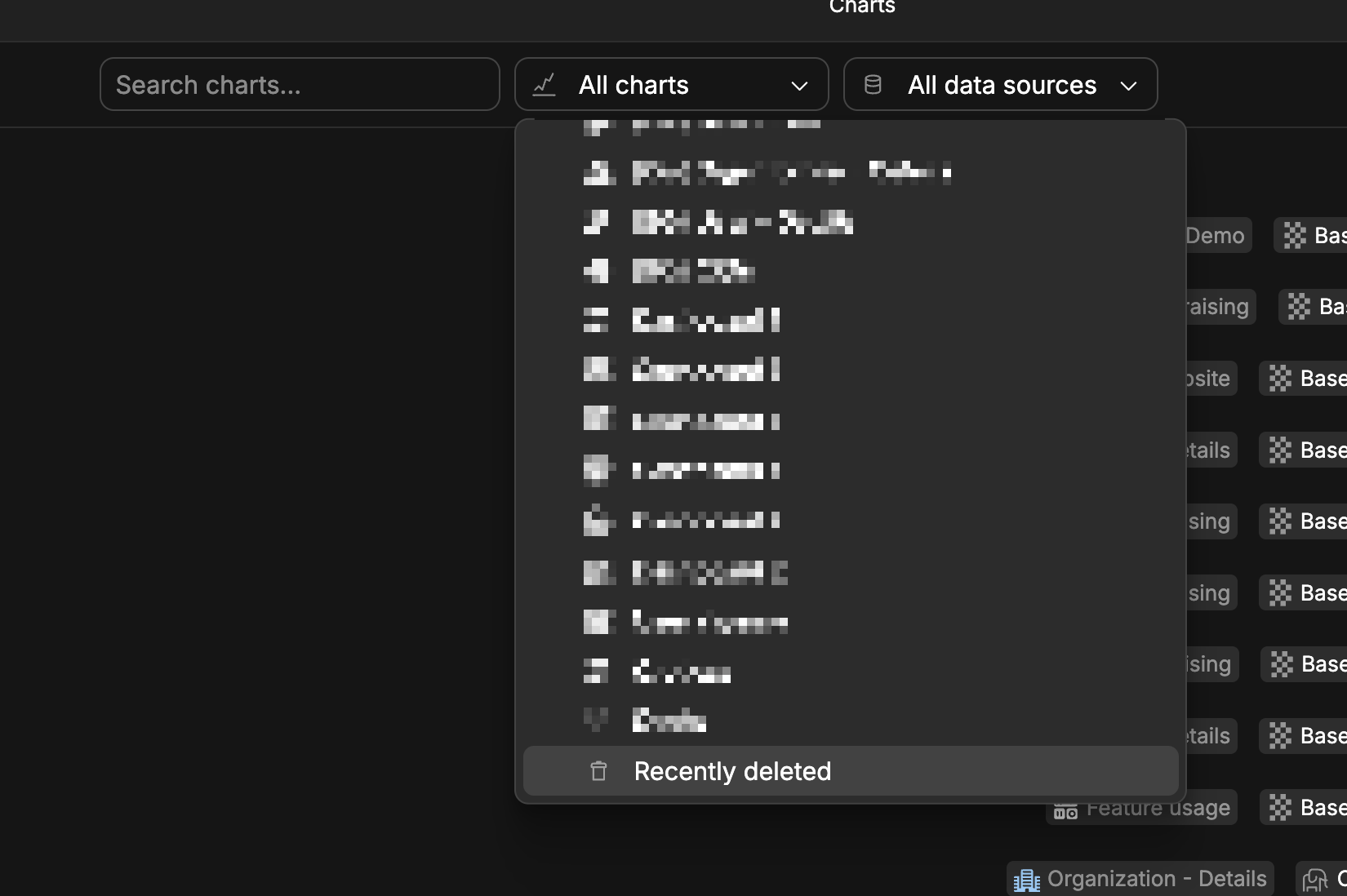
How do I restore archived or deleted dashboards?
Recently deleted dashboards can be restored by going to the main dashboards page and selecting the “Recently deleted” option in the top header. Dashboards are permanently deleted after 30 days.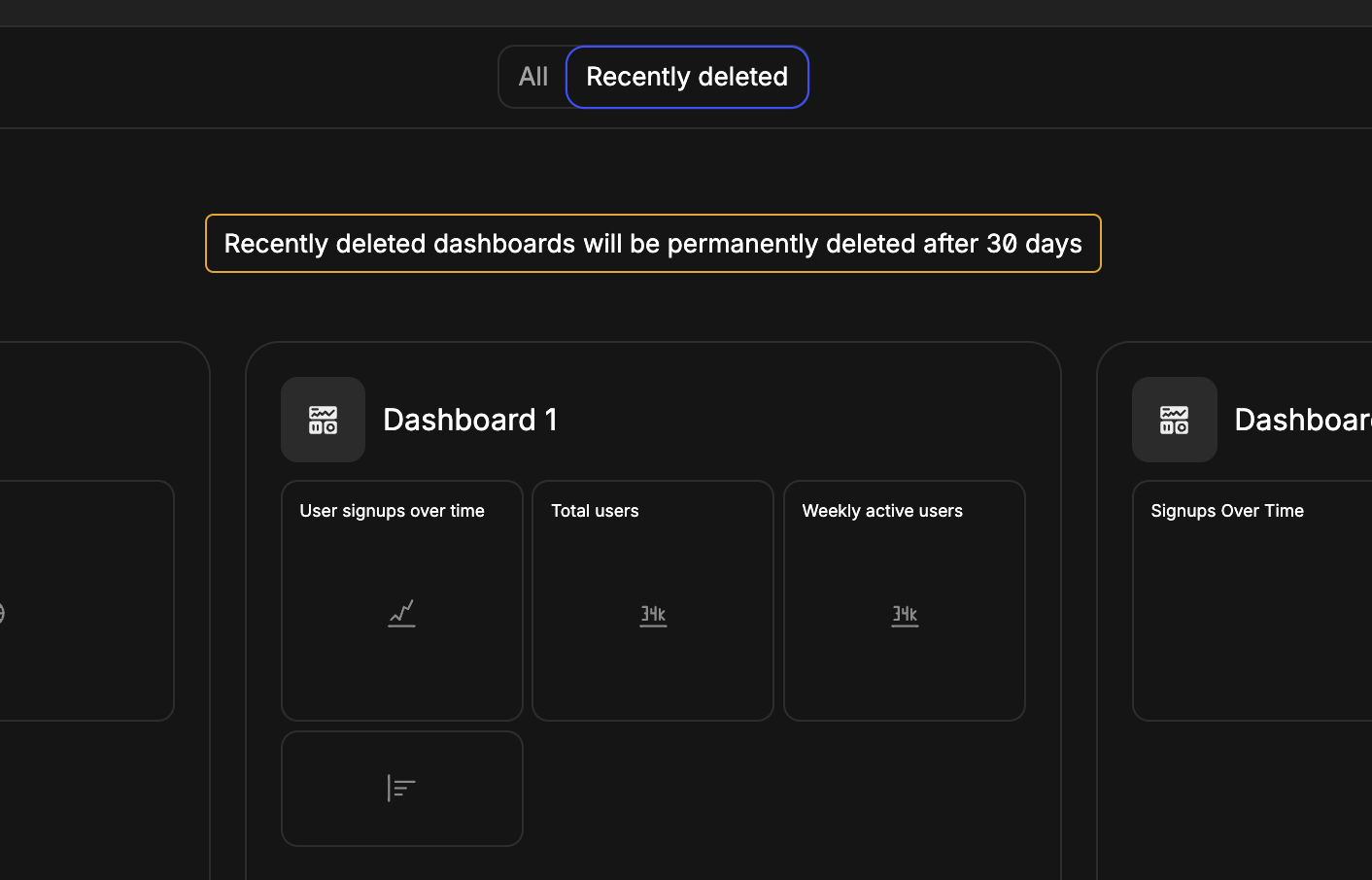
Can I restore deleted chats?
No, deleted chats cannot be restored. Once a chat is deleted, it’s permanently removed from the system.How do I export data from my queries?
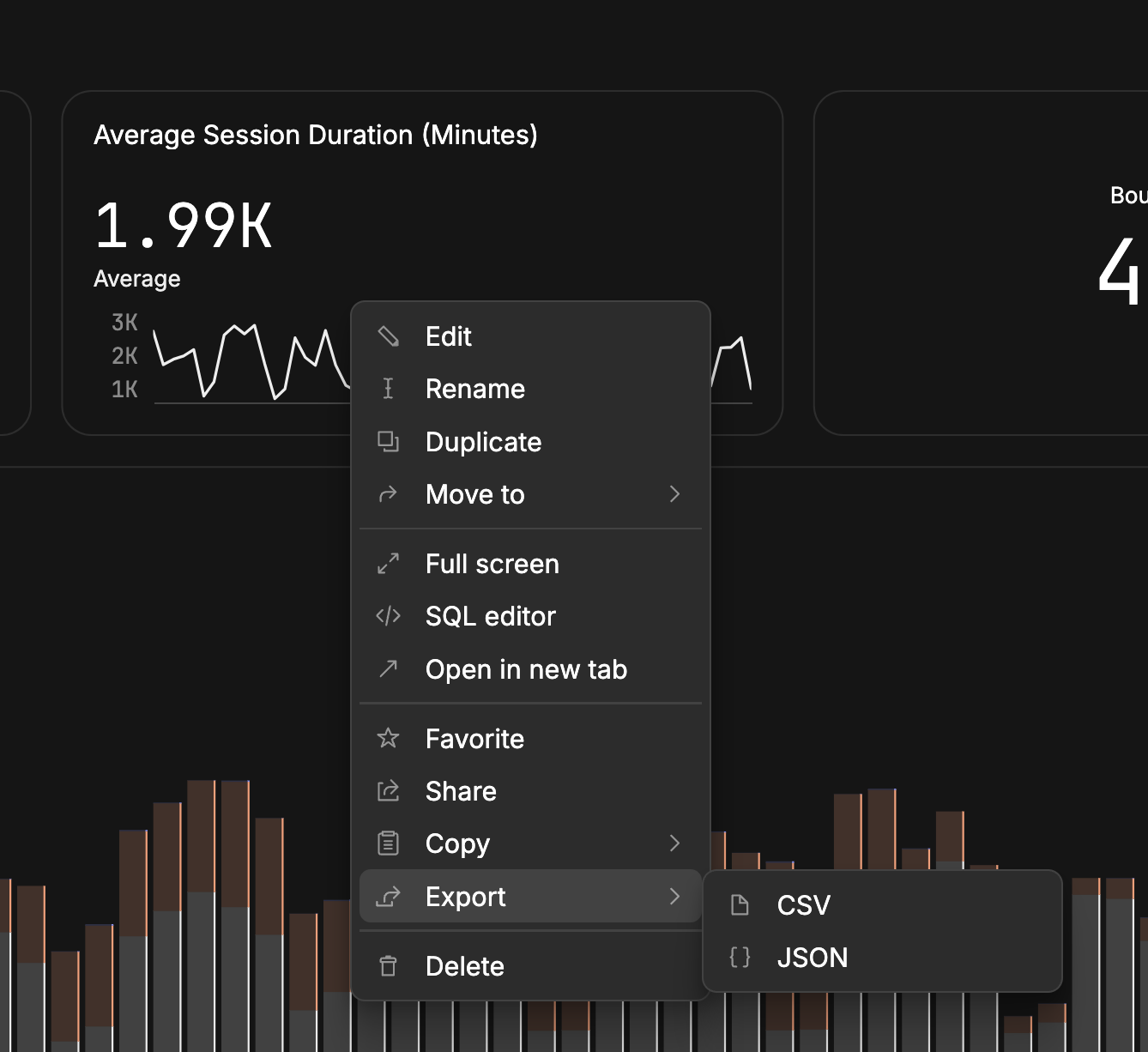
You can export data from your queries in several ways: From charts:- Right-click on any chart and select “Export” to choose between CSV, JSON, or Excel formats
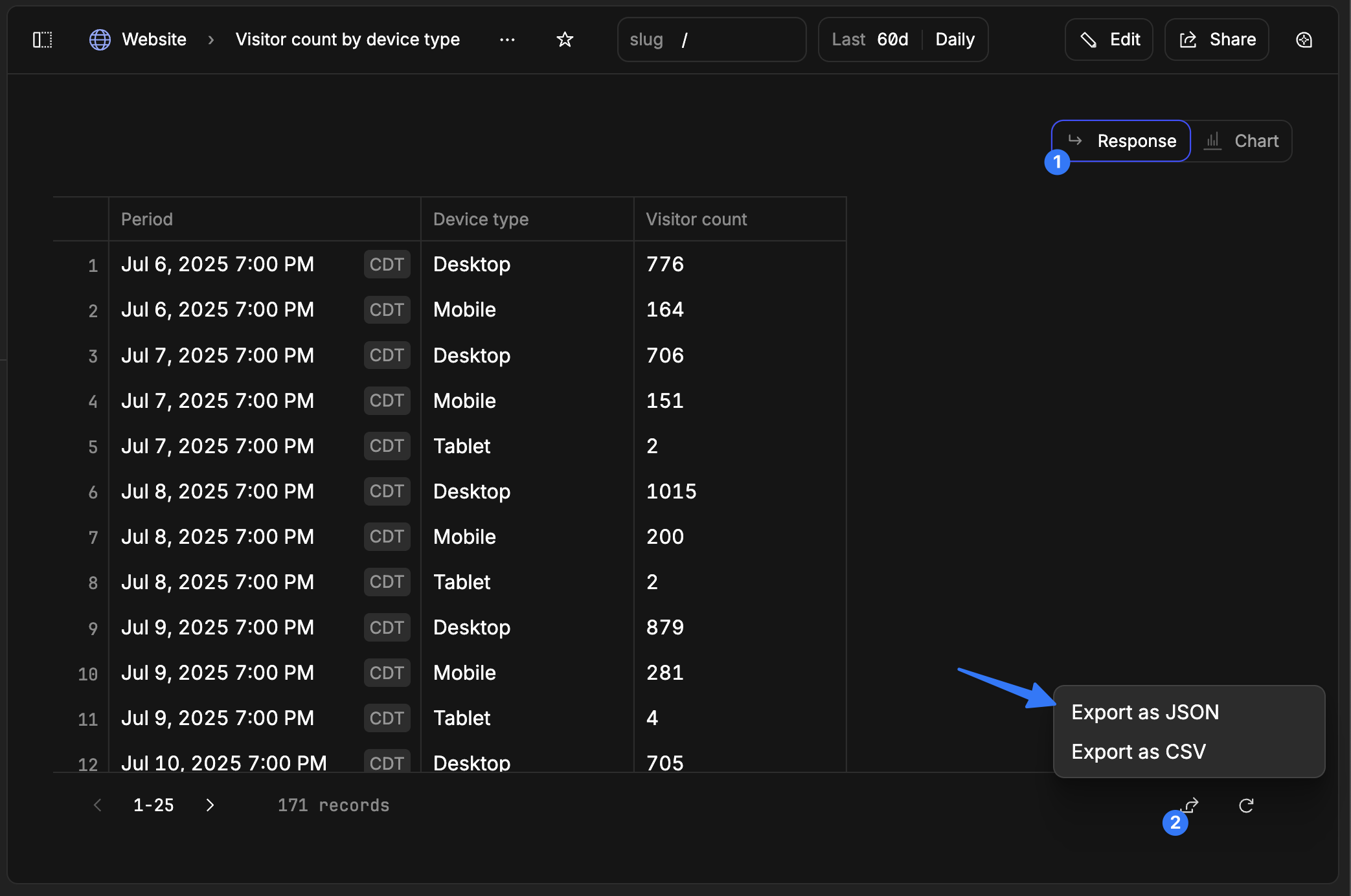
- Open a chart, go to the “Response” tab, and click the export button in the bottom right corner of the footer
- Go to the Data page and select the export button in the footer of the data tables
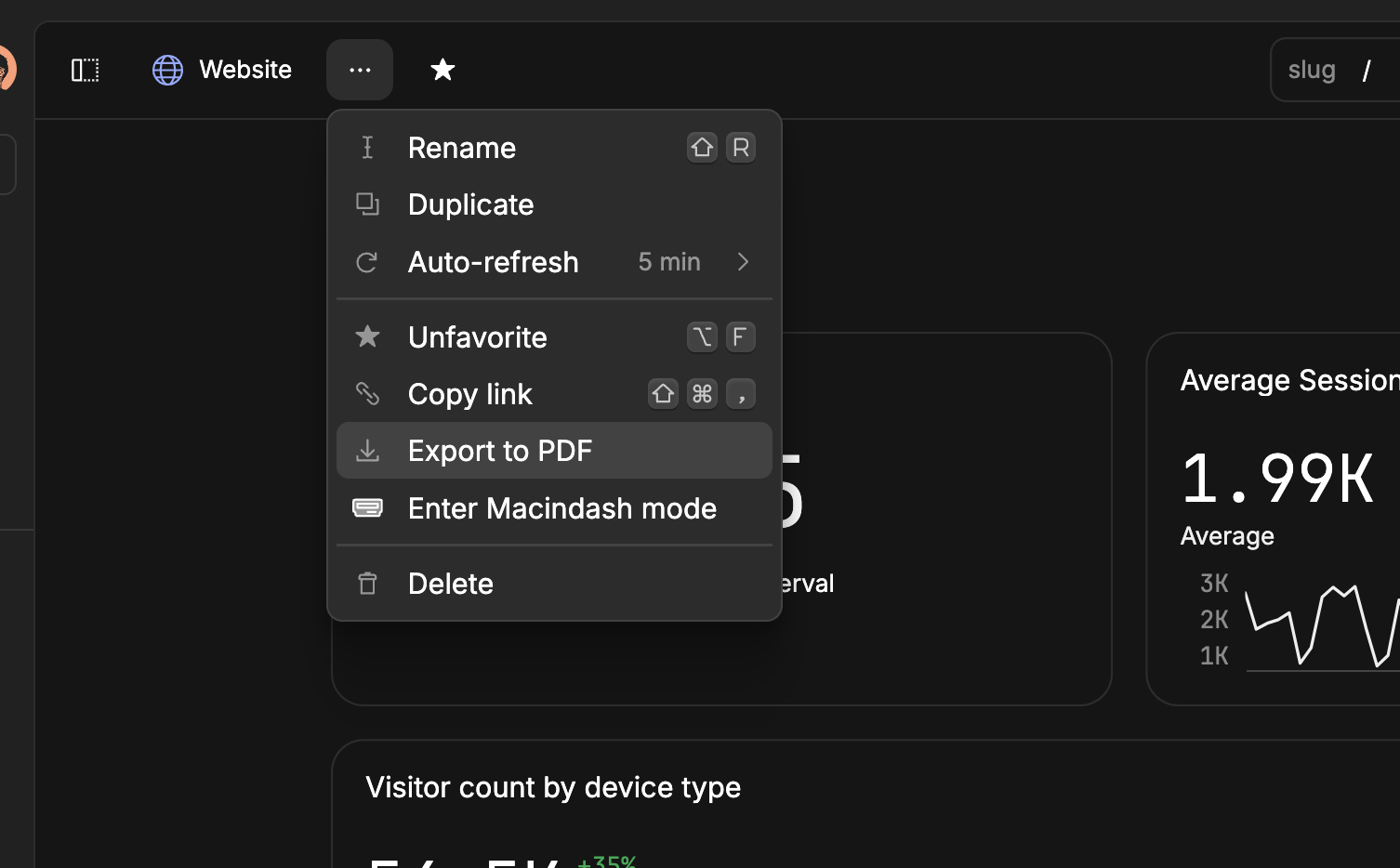
- Click the overflow menu (three dots) next to the dashboard name in the header
- Select “Export to PDF” to export the entire dashboard
- Data is exported in raw format and may not support the same formatting as seen inside Basedash
- We export raw response data, so formatting like currency symbols or date formatting may not be preserved
- Export options include CSV, JSON, Excel, and PDF formats depending on the context
Can I upload my own CSVs of data?
Yes, you can attach files to a chat and ask questions about them. Supported files include CSV and TSV, Excel, PDF, Word, PowerPoint, JSON, text, and images, up to 50 MB per message. Attached files are only available in that chat. To use a file as a table across charts and dashboards, connect a file storage service like Google Drive, Dropbox, Google Sheets, OneDrive, and Azure Blob Storage. If a CSV is in the folder you connect, it will be shown and used as a table within Basedash under that connection.Is Basedash read-only or can it edit data?
The AI is read-only by default. On Postgres, Redshift, and Supabase, people with Can edit access to a data source can ask chat to make a change, and the AI proposes a singleINSERT, UPDATE, or DELETE statement that only runs after they approve it. To rule out changes completely, connect with a read-only database user. See Accuracy and trust.
How can I restrict access to data?
Basedash provides access controls at several levels. Admins can use data source access control to choose who can view or edit each data source, and hide specific schemas, tables, or columns from members and groups. Row-level security limits which rows each user sees. You can also create groups and assign access permissions to individual dashboards. For example, you could create a dashboard that only your support team can access, while maintaining separate dashboards exclusively for your engineering team. This granular permission system ensures sensitive business data is only visible to the appropriate stakeholders. On the Enterprise plan, we also support SAML SSO, allowing you to manage user authentication through your existing identity provider.How can I be confident that the data in chats isn’t hallucinated?
Every number in a chat answer comes from a SQL query that Basedash runs against your data, not from the AI’s memory. Open Sources under an answer to see each query’s SQL and results. Basedash also runs internal evaluations with every new AI model release to check error rates. See Accuracy and trust for how answers are generated and how to check them.How do I create a variable/filter?
Basedash automatically creates filters when you use certain language patterns in your prompts. For example:- Entity references: “Show me details for a user” → Creates a user selector
- Time references: “Revenue over time” → Creates date range filters
- Text searches: “Customers named John” → Creates text filters
- Numeric thresholds: “Orders over $100” → Creates number filters
- Boolean conditions: “Only active users” → Creates boolean filters
- Category selections: “Sales by region” → Creates list filters
Support
How can I get help?
You can get help through:- Our detailed documentation
- Email support at support@basedash.com