Skip to content

October 10, 2025

Archive automations with a “Recently deleted” view

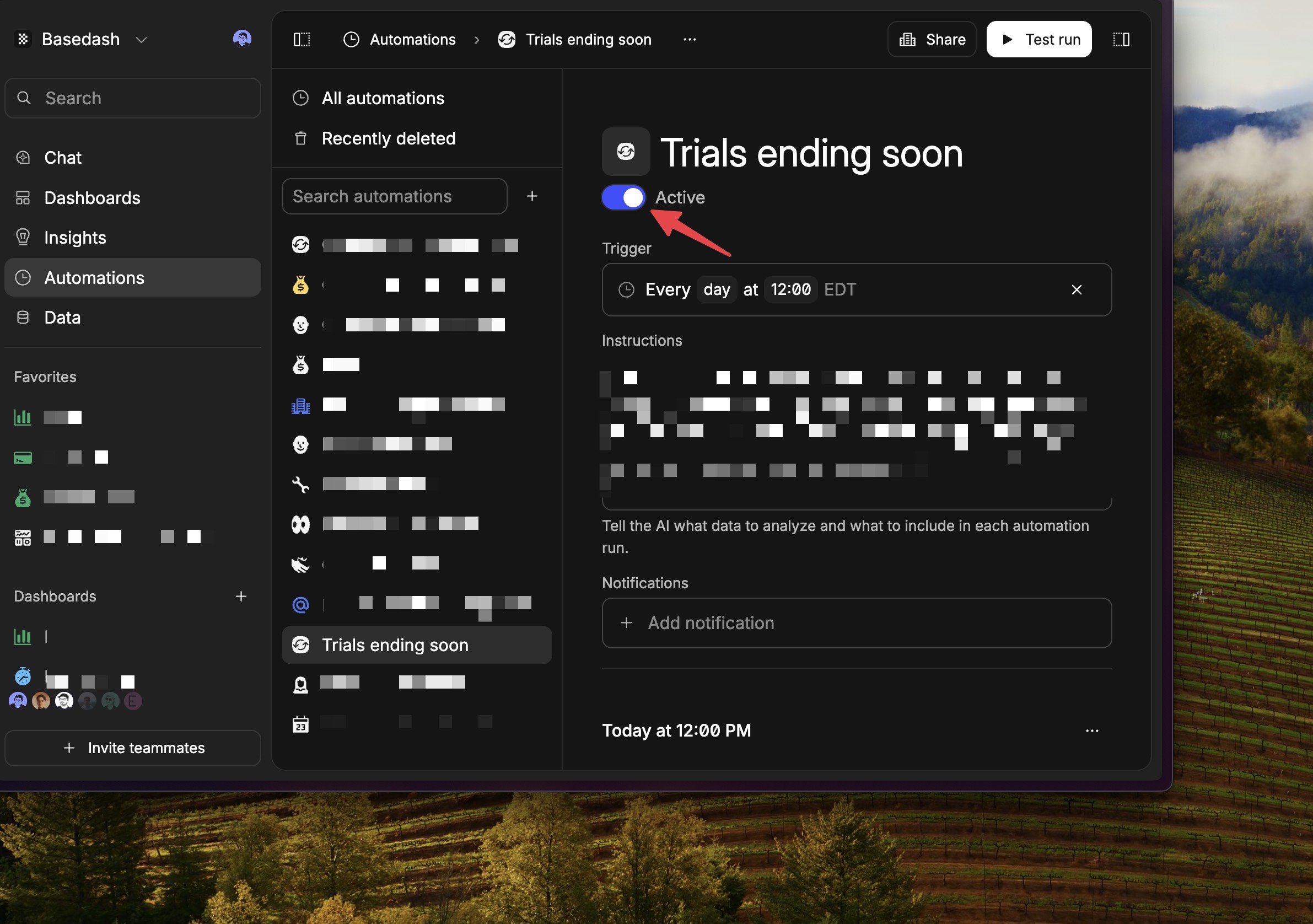
You can now archive automations. Archived items are moved to a “Recently deleted” section, helping you keep workspaces tidy without losing context. This follows the same archiving model we use for dashboards and charts for a consistent cleanup workflow.

Clearer partial data in time series charts

Time series charts now use dashed lines and bars to indicate partial periods (for example, the current day or month). This makes it obvious when a data point is still in progress and helps prevent misreads of incomplete data. We also shipped a small performance improvement when rendering these partial series.

Faster AI chat with database schema caching

We added a database schema cache so we no longer re-fetch large schema metadata every time you start a chat. In local tests, this shaved about 1–2 seconds off responses on cache hits, with bigger gains on larger databases, while also reducing load on the database.

October 3, 2025

Databricks as a data source

You can now connect Databricks as a data source. Point Basedash at your Databricks SQL warehouse and start querying right away. This expands support for enterprise data stacks and makes it easier to bring Databricks datasets into dashboards and AI workflows.

Connection uses your Databricks workspace URL and SQL warehouse credentials. Once connected, tables appear alongside your other sources in the Data tab.

Mobile navigation: “More” menu for account and org actions

We’ve added a “More” menu in mobile navigation so it’s easy to log out and switch organizations from your phone. This addresses the prior limitation where these actions were hard to access on smaller screens.

The result is a more complete and predictable mobile experience across accounts and orgs.

Data tab: Fivetran connectors now visible

Fivetran connectors are now shown directly in the Data tab, making it simpler to see which sources are synced through Fivetran and how they relate to your other data.

September 26, 2025

Unified account and organization menu

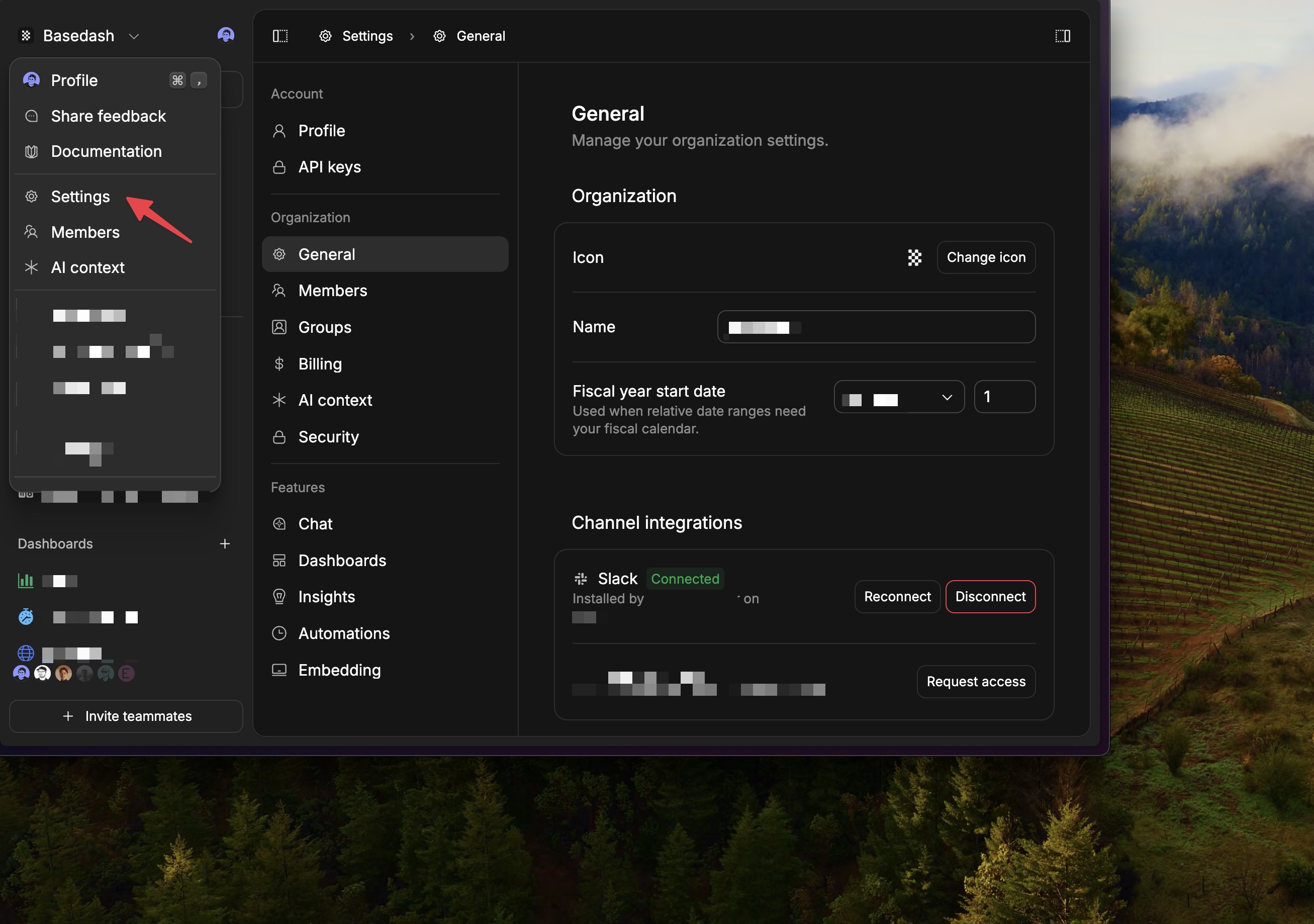
We’ve combined the organization switcher and user dropdown into a single, streamlined menu. Logout now lives in the Profile command menu route (and remains available from the global command menu), reducing duplication and simplifying navigation.

Cleaner data browsing with soft-deleted rows filtered by default

The data page now automatically filters out soft-deleted records. This keeps views tidy and reduces the chance of confusion or acting on deprecated data, improving day-to-day clarity for data exploration.

Fixes and improvements

  • Removed the “New chart from prompt” command; use the global AI chat panel instead.
  • Fixed blank spacing that caused extra “thinking” rows in chats.
  • Restored vertical expansion for the chat input.
  • Resolved gaps in chat messages so conversations appear continuously.
  • Fixed an issue where stopping AI chat didn’t reliably stop generation or restore the prior prompt.
  • Made the global chat sidebar open by default for quicker access.
September 19, 2025

Self-hosted deployment updates

We introduced a System Settings UI that centralizes configuration (like email and AI providers) in-app for self-hosted instances. This reduces reliance on environment variables and makes setup and ongoing administration much simpler.

Access is limited to admins on self-hosted instances. While the first iteration focuses on foundational structure, it sets the stage for more configuration options to be managed directly in the app.

Simpler SMTP configuration with test emails

SMTP setup is now more forgiving for self-hosted deployments. Authentication is optional when no username/password is provided, and TLS behavior is handled more explicitly to support local/dev testing scenarios.

A test email tool lets you validate templates and configuration end-to-end, improving confidence in email delivery before going live.

Improved Fivetran connector onboarding

We improved the connector onboarding flow to make it easier to connect new data sources through Fivetran, with clearer status indicators and better error handling.

September 12, 2025

Charts in Chat for everyone

You can now generate and work with charts directly from Chat across the app. While viewing a dashboard, adding a chart from the global chat instantly pins it to your current dashboard—making it faster to capture insights without context switching.

We also smoothed the reading experience in chat with cleaner table rendering and streaming of final assistant replies so long answers don’t “jump” when they finish.

Redesigned chat sidebar: integrated and resizable

The chat sidebar is now part of the main layout and can be resized to fit your workspace. The previous floating panel has been removed, giving a more predictable, space-efficient workflow and consistent sizing across chat contexts.

Fixes and improvements

  • Added a loader in the sidebar while a chat is generating.
  • Hardened security across authentication and session handling.
  • Improved stability for real-time sync connections.
September 5, 2025

Global AI sidebar

A new global AI sidebar is now available across the app, making assistance just a click away wherever you are. The chat list is collapsible and there’s a floating sidebar variant so you can keep working while chatting. When you navigate between pages, your selected chat now stays open in context for a smoother flow.

We also tightened up the sidebar experience with scroll reliability, better spacing, and visual refinements to “thinking” states so the interface feels faster and more consistent.

New OTP login flow

We’ve introduced a one-time passcode (OTP) login option for a faster, more reliable sign-in experience. The OTP screens have been refreshed to be clearer and more consistent with the rest of the product.

Alongside the new flow, we fixed an issue where magic links could fail if you were already logged in, improving reliability for link-based sign-ins.

Automations onboarding and clarity

New workspaces now automatically get a “Daily insight” automation with email notifications enabled, so you start seeing value without setup. If you don’t want it, you can always remove or customize it later.

August 29, 2025

Chat navigation overhaul: right-side list + full-screen chats

We moved the chats list to the right sidebar to match the main app’s layout and improve focus on results. You can also open individual chats in a full-screen view for deeper exploration without distractions. This makes navigating between chats faster and more consistent with the rest of the product.

Private or shared chats, with a simple toggle

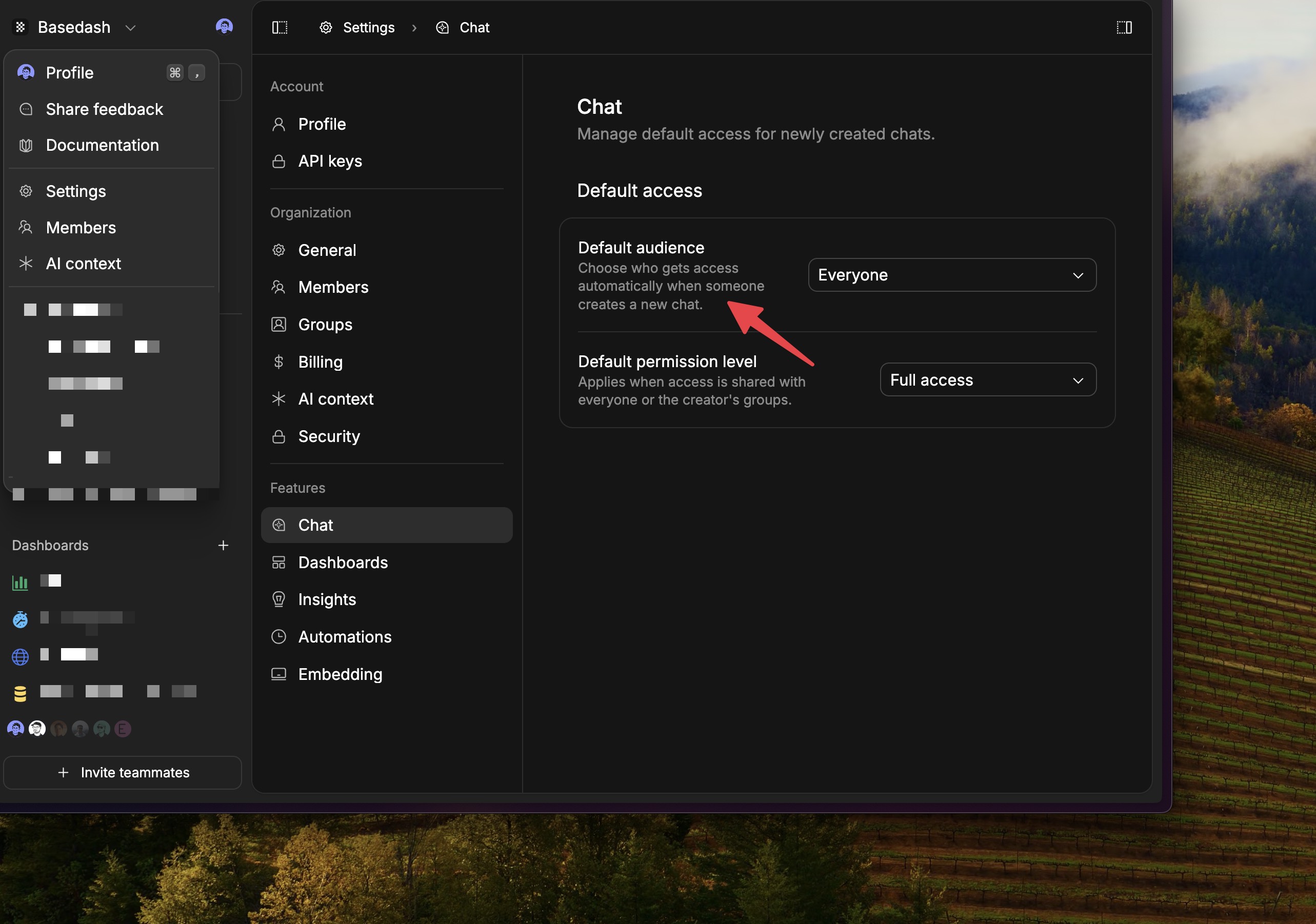
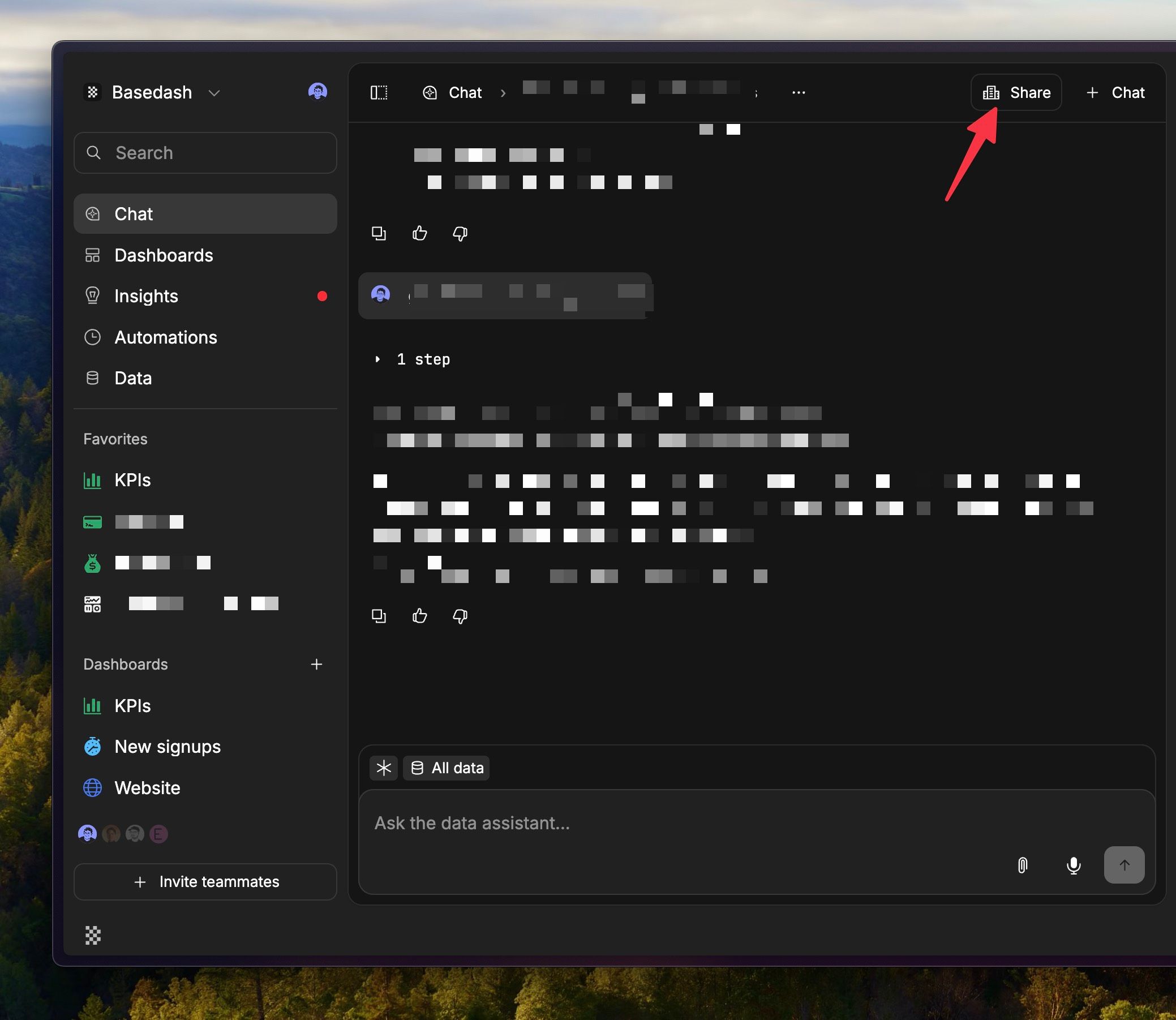
You now have clear control over who can see a chat. A new Share button lets you set chats to private or shared at any time, and your sidebar filter for private/shared chats persists across sessions. New chats respect your current filter selection, so you’re always creating in the mode you expect.

Charts in chat: add to dashboards, export, and copy as PNG

Turning insights into assets is quicker: charts generated in chat can be added directly to a dashboard (existing or new), copied as a PNG, or exported. We also refined chart sizing and frames so results feel more readable. When sending answers to Slack or email, interactive charts are disabled to avoid confusion and ensure the message comes through cleanly.

Data page: table context menus

Right-click context menus are now available on tables in the Data page, making it faster to access common actions like filtering, sorting, and copying.

August 15, 2025

Upgraded AI engine to GPT-5

We’ve upgraded both the chat and chart agents to GPT-5. You should see stronger reasoning, clearer responses, and more reliable tool use across multi-step tasks and longer conversations.

Behind the scenes this also improves how context carries across turns, resulting in more consistent follow-ups and better alignment with your intent.

Organization-level custom AI context

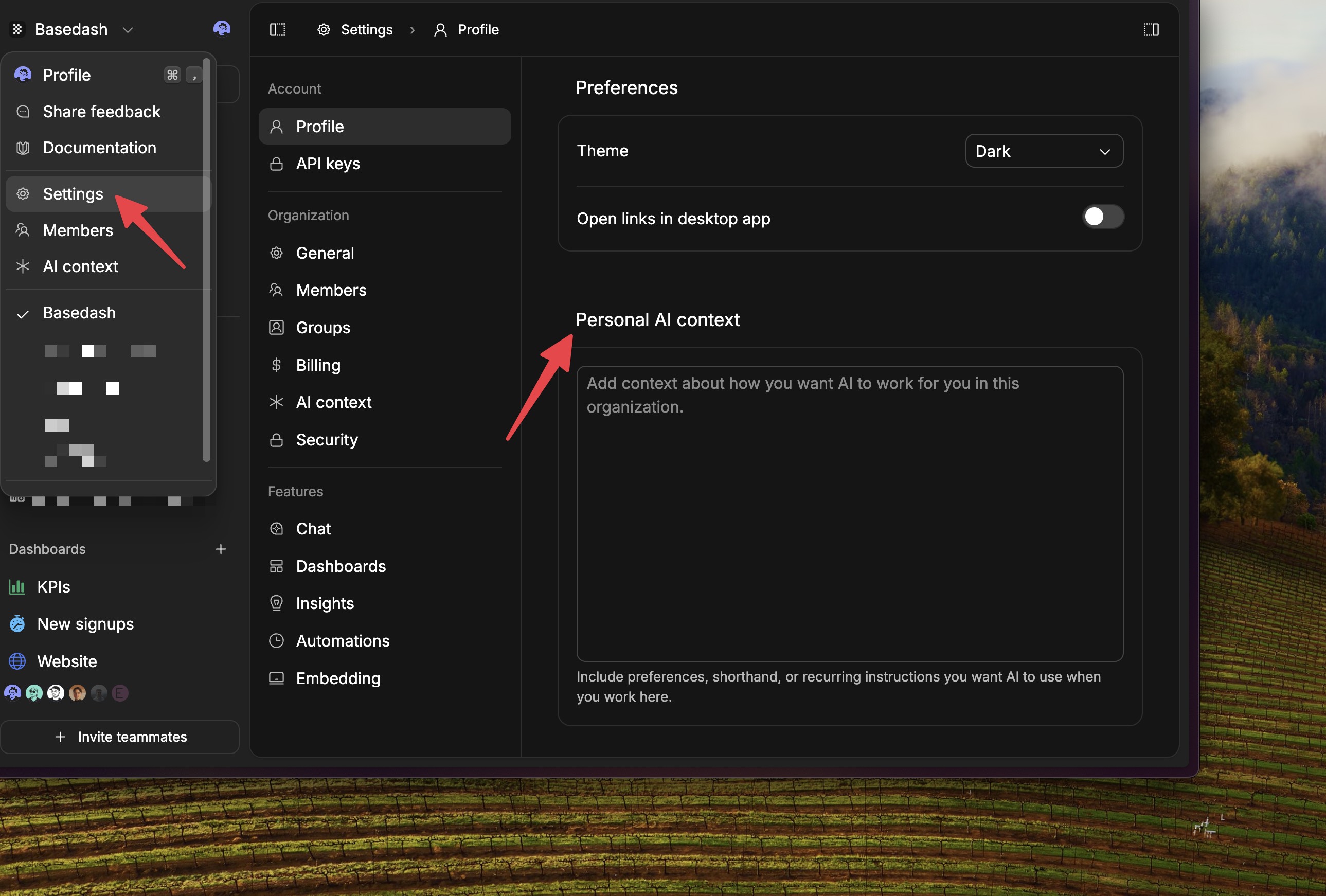
You can now define a custom AI context for your workspace. Use it to teach the AI your preferred terminology, data nuances, or response style so answers better reflect your organization.

This setting is available from the organization switcher and in Settings. Once configured, the chat and chart agents will take your context into account by default.

One-click copy for chat messages

Every chat message now includes a dedicated Copy button, making it quick to share answers with teammates or reuse snippets elsewhere without losing formatting.

Fixes and improvements

  • Improved chart rendering performance for large datasets.
  • Fixed edge cases in date range filtering.
  • Improved error messages when database connections fail.