Pular para o conteúdo

24 de julho de 2026

Chat has a fresh new look

Chat got a visual refresh. Your own messages now appear in clean blue bubbles that shrink to fit exactly what you typed, so conversations are easier to scan at a glance.

Following along with the AI is clearer too: every tool call now shows a plain-language description of what it’s doing—like searching your schema or running a query—instead of raw JSON. You can see each step the AI takes without decoding technical output.

Sort tables right inside chat

Tables in AI responses have been redesigned with a cleaner, card-style layout, right-aligned numbers, and a tinted header row that’s much easier to read.

Best of all, you can now sort any column with a single click. Numbers, dates, and text all sort intelligently, so you can reorder a result set to surface the biggest values or the latest records without leaving the conversation or writing more SQL.

AI database edits are validated before you approve them

When you ask Basedash to change data in your database, it now checks the query before showing you an approval prompt. Invalid or broken mutations fail fast and the AI corrects them on its own, so the change you’re asked to approve is one that’s actually ready to run.

That means less time reviewing writes that would have errored out anyway, and more confidence that an approved change will do what you expect. Edits are handled one at a time, keeping each approval clear and easy to reason about.

Fixes and improvements

  • Made connecting Fivetran data sources smoother by fixing a confusing “already connected” state and error toast that could appear while a connection was still being set up, plus a stray “allow popups” warning on the desktop app.
  • Fixed chats showing a stale approval request when several actions needed approval at once, so you always see the current one.
  • Fixed chat contents occasionally appearing out of order, and stabilized the ordering of automations, MCP tools, and hidden schema lists.
  • Scoped AI variable and filter updates to the dashboard you’re working on, preventing changes from leaking to other dashboards, including duplicated ones.
  • Gave the AI richer context about your data—row counts, sample values, and null rates—so it writes more accurate queries and charts.
  • Improved chat answer quality on tougher analysis with an updated prompt and default model, and let the AI consult a second model on genuinely hard questions.
  • Clarified how the AI formats percentages in charts so they render on the correct scale.
17 de julho de 2026

Chat, dashboard, and automation suggestions

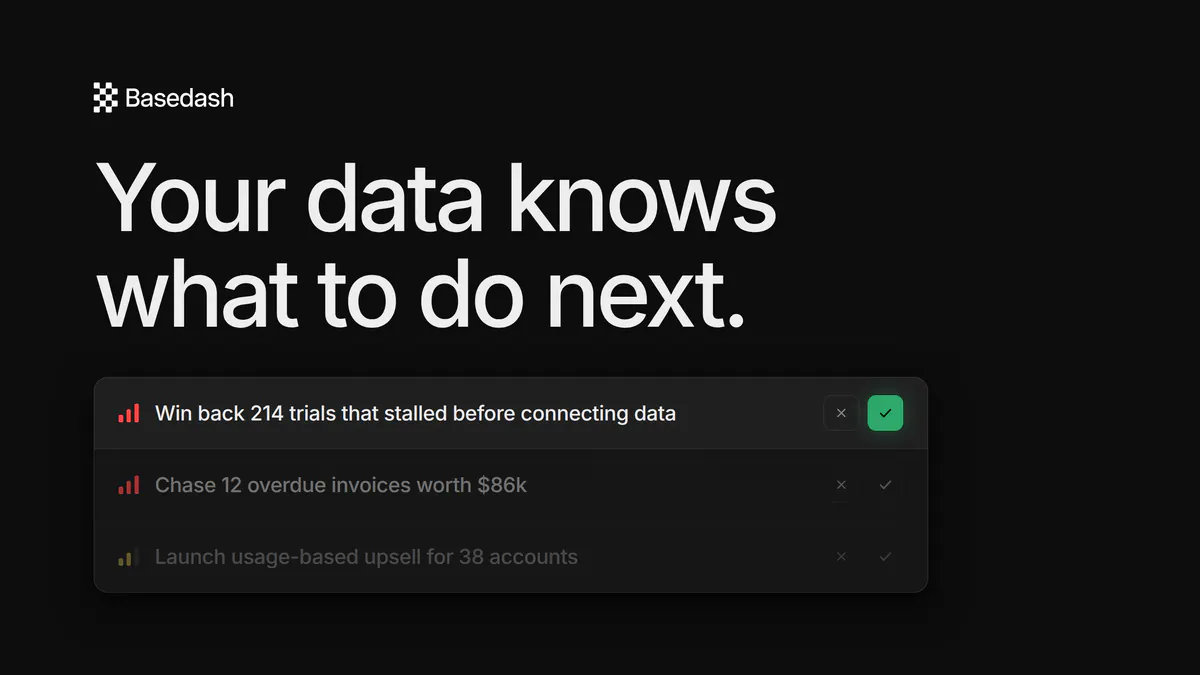
Basedash now gives every workspace personalized suggestions across chat, dashboards, and automations, so you have useful starting points before you type a prompt or build from scratch. Suggestions are generated from your connected data, past chats, dashboards, and workspace context, then appear where you’re already working: questions under the chat input, dashboard ideas with build plans, and recurring report ideas for automations.

Suggestions are rolling out to all workspaces today. Read the full launch post, Introducing Basedash Suggestions, for the deeper walkthrough of how they work and how to get started.

Drive Basedash chats from the public API

You can now start and continue AI chats programmatically through the public API. Send a question, wait for the answer synchronously or poll for it, stream responses as they generate, list past turns, and cancel or delete chats—all with the same API-key auth as the rest of the platform. Chats created through the API stay out of the app UI, so automated workflows don’t clutter your team’s chat history.

We also added a general chart image endpoint, so you can fetch a rendered PNG for any chart you have access to—whether it lives on a dashboard, in a chat, or in an insight—always rendered with your own data permissions. Chart responses now include a ready-to-use image URL, making it simple to drop live Basedash visuals into your own docs, apps, and reports.

Dashboards load instantly, even after a few days

Opening a dashboard no longer means waiting on fresh warehouse queries for every chart. Basedash now recognizes when a chart is really asking for the same data as before—even when relative date ranges like “last 7 days” shift to a new calendar day—and serves the previous result instantly while quietly refreshing in the background. Charts that felt slow to reopen after a weekend now snap into view.

Query caching is also on by default now, with a new admin toggle in Settings → General so you stay in control. Filter changes, date-range edits, and pagination still fetch fresh data, so you always see exactly what you selected.

Invite and manage members more easily

Inviting teammates is now a single dialog you can open from the sidebar, command menu, members settings, or right in the middle of connecting a data source. Pick a role and, optionally, drop new members straight into groups as you invite them—and re-inviting someone you previously removed restores their account cleanly. When invites go out to several people at once, each one is handled independently so a single bad address doesn’t block the rest.

The members list is clearer too: each member shows how many groups they belong to, and admins can adjust group membership right from a member’s menu. We also reworked the language from “deactivate/reactivate” to the more intuitive “remove/restore.”

Fixes and improvements

  • Kept long chats going instead of hitting a dead end—when a conversation grows too large, Basedash now automatically compacts older context and continues, rather than asking you to start a new chat.
  • Improved how the AI explores large database schemas with new catalog and table-description tools, so it finds the right tables faster and spends less time introspecting.
  • Fixed opening tables in the Data tab for PostHog connections, which previously failed with a raw error, and made PostHog error messages readable.
  • Fixed chat messages occasionally rendering out of order, so an assistant reply no longer appears above the question that prompted it.
  • Fixed follow-up messages appearing to go nowhere when you open a chat directly from a link, so live status now updates correctly for deep-linked chats.
  • Fixed the tool-approval card staying on screen after you approve an action, so chat resumes without a manual refresh.
  • Fixed a jump in the chat view when the assistant’s final answer starts streaming, keeping the message height stable.
  • Fixed exported chart images (PNG and PDF) and Slack chart images so fonts load correctly and tightly measured numbers are no longer clipped.
  • Improved the reliability of AI chart edits when the model leaves display settings unchanged.
10 de julho de 2026

Manage dashboards and charts with the public API

The public API now covers dashboards and charts. You can list, create, update, and archive dashboards (including their tabs), list the charts on a dashboard, and create, update, and archive charts—all through /api/public, following the same auth and pagination conventions as the rest of the API. The full spec lives at /api/public/openapi.

Chart content like the name, SQL query, chart type, and axes is flattened right onto the chart resource, so it’s simple to read and edit. Behind the scenes, content edits create a new chart version, so your history stays intact while the API stays easy to work with. We also expanded the organization endpoints (Insights AI context and billing email settings) and added controls for setting MCP tool approval modes.

A dedicated home for connecting data sources

Connecting a data source has moved out of the command menu into full pages in the Data section. There’s now a searchable directory of everything you can connect—databases, warehouses, Fivetran connectors, MCP servers, and demo data—organized into categories so it’s easy to find what you need.

Each option gets its own connect page with a logo, description, and docs link alongside an inline connection form, whether that’s database credentials, a Fivetran connect card, an Airbyte spec form, or an MCP server URL. Once a connection succeeds, its data page opens right away. This replaces the older experimental Integrations pages.

View and edit access for data sources

Data source access is now split into view and edit levels, so you can give people exactly the access they need instead of an all-or-nothing setting. View access lets teammates query and explore a source, while edit access is required for AI-run write queries—which still require explicit approval before anything runs.

You manage these levels right from the data source’s Data Details page, which is now the single source of truth for access. Existing access defaults to view, keeping edit only for sources that already had AI database edits enabled.

Chat automatically uses all your data

The chat input no longer asks you to pick a data source for each message. Instead, Basedash automatically queries across every source you have access to and quietly skips any that are offline, so you can just ask your question and get an answer. You can even start a chat when your only connection is an MCP server.

The input itself is cleaner as a result: the model picker and a plus menu (for AI context and file uploads) now live on the action bar, with less chrome getting in the way of your question.

Fixes and improvements

  • Improved how AI writes drill-down queries, so clicking into a chart element reliably shows the underlying records once the chart is on a dashboard.
  • Enabled the AI to color single-series charts (a line or bar without a breakdown), matching what you could already do by hand.
  • Simplified voice recording in chat down to a single primary action button, with a dedicated cancel control that appears while you’re recording.
  • Improved sidebar and chat panel behavior with a smoother open and close animation, Settings as a top-level nav item, and log out and settings available from the org switcher.
  • Kept the dashboard AI input focused when you click a chart to add it as context, so you can keep typing without losing your place.
  • Kept dashboard and automation prompt suggestions visible while they refresh in the background, and extended how long they stay fresh.
  • Fixed a custom date range filter drifting one day backward after a reload in timezones behind UTC.
  • Fixed newly connected data sources not appearing on the Data page until a manual refresh.
  • Added opt-in invoice emails so you can receive each paid invoice by email, with an editable billing email in settings.
  • Added a sidebar notice for admins when a subscription is past due, linking straight to billing.
  • Kept the required confirmation text visible while typing in the data source delete flow, so you always know exactly what to enter.
  • Improved the reliability of AI chart creation and editing when the model sends minimal settings.
3 de julho de 2026

Subscribe to any dashboard or chart

You can now subscribe to a dashboard or chart and have it delivered on a schedule—straight to your inbox or a Slack channel. Set the cadence with a plain-language schedule, choose who receives it (teammates, yourself, or Slack), and Basedash sends a fresh, up-to-date screenshot every time it runs.

Subscriptions live right in the dashboard and chart menus, so keeping stakeholders in the loop no longer means remembering to export and share things manually. You can set up multiple subscriptions with different schedules and audiences, and edits save inline as you make them.

One unified AI on every dashboard

Dashboards no longer have separate Ask and Edit modes. The dashboard assistant is always available, and you steer it by clicking a chart to attach it as context—then ask a question or request a change, and press Esc (or the badge ✕) to deselect. The input even tells you which chart is selected, so it’s always clear what you’re asking about.

View-only teammates can now select a chart and ask about it too, while any changes stay gated to people with edit access. We also polished direct manipulation: you can resize cards from all four corners, handles only appear where you can actually grab them, and the card you’re resizing stays cleanly on top with no distracting drop shadow.

SCIM provisioning for enterprise teams

Basedash now supports SCIM 2.0, so enterprise teams can connect an identity provider like Okta or Microsoft Entra ID and automatically provision, update, and deactivate members—and keep groups in sync—without managing access by hand. Admins generate a SCIM token from Settings → Security, drop the base URL into their IdP, and membership follows whatever their directory says.

Deactivating someone in your IdP removes their access in Basedash automatically, and users provisioned this way sign in through SSO. Token creation is available on paid plans, matching how SSO works today.

A more personal way to start a chat

The new-chat screen now greets you with starter prompts tailored to your organization and your connected data, so there’s always a useful next step in front of you instead of a blank box. When you haven’t connected Slack or a data source yet, you’ll see quick actions to do that right from the home screen.

We’ve extended the same idea to your dashboard and automation pages, which now show personalized, AI-generated suggestion cards to help you spin up something new. Anything you’re not interested in can be dismissed on hover.

Fixes and improvements

  • Added an MCP server settings page so you can grab your Basedash MCP server URL and connect Basedash to AI tools like ChatGPT, Claude, and Cursor—and made the URL easy to select and copy manually.
  • Added Claude Sonnet 5 and Claude Fable 5 to the model picker.
  • Rotated crowded x-axis labels on vertical bar charts so they stay readable instead of overlapping, with extra room reserved so nothing gets clipped.
  • Refreshed chat attachment previews with rounded image thumbnails, richer file cards, consistent sizing, and a hover-to-remove control on every attachment.
  • Smoothed out the AI chat input and panel with rounded corners and a cleaner shadow.
  • Fixed deleted chats briefly reappearing after you removed them, and moved delete confirmation to only show once the server accepts it.
  • Stopped the AI from trying to query data sources that are offline, with clearer messages naming the unavailable source.
  • Kept embedded dashboards working after a customer’s signing token expires, so charts and exports no longer break mid-session.
26 de junho de 2026

Edit charts directly in chat

You can now refine a chart without starting over. When you ask the assistant to tweak a chart it already made in the current conversation, it edits that chart in place instead of spinning up a brand-new replacement—so iterating on a visualization feels like a real back-and-forth rather than a growing pile of near-duplicates.

Chat also keeps each chart pinned to the exact version it referenced, so scrolling back through a conversation always shows the chart as it looked at that moment. Adding an older chart to a dashboard or copying it brings over that original version, not whatever the latest edit happened to be.

A cleaner, more capable AI chat

The chat experience got a visual refresh. Your own messages now sit in a rounded bubble aligned to the right with no avatar, while messages from teammates (and from Slack) show their name and avatar on the left—so multi-person conversations are much easier to follow at a glance.

The assistant’s thinking is tidier too. While it works, you see live tool activity; once it’s done, the steps collapse into a simple “Thought for…” summary you can expand on hover. We also unified the scroll-to-bottom button across every chat surface and fixed completed web searches so they show their sources instead of a stuck loading spinner.

Smarter analysis across your databases

Basedash’s AI analyst is now more rigorous about the kinds of questions that trip up most tools. It’s more careful with ambiguous metrics, distinguishes named rates from their supporting deltas, notices when a data source is stale versus fresh, and double-checks compound, multi-part answers before responding—so you get answers you can trust, with the caveats that matter.

We also taught it production-tested SQL gotchas for the databases you actually use—Postgres, Supabase, Redshift, Snowflake, SQL Server, MySQL, PlanetScale, BigQuery, and more—so the queries it writes run cleanly the first time, with fewer dialect-specific errors.

Set a spending limit on AI usage

Organization admins can now set an optional cap on AI overage spend right from billing settings. Once you reach your included credits plus the limit you’ve set, AI usage pauses instead of running up an unbounded bill—and admins get a heads-up email so there are no surprises.

Leave it unset for no limit, or adjust it anytime. Either way, you stay in control of exactly how much you’re willing to spend on AI in a given period.

Fixes and improvements

  • Made AI-run write queries generally available—admins can enable them per data source, and every change still requires explicit approval before it runs.
  • Gave organization admins full access to every dashboard, dashboard folder, chat, and automation, regardless of individual sharing settings.
  • Preserved your exact SQL output column names in table charts—use SELECT aliases like AS "Customer Name" for readable headers.
  • Fixed dashboard charts that could get stuck showing stale data after a missed refresh, and moved the “Updating data from…” note into the chart header spinner.
  • Moved the dashboard tab auto-advance control into the tab bar and renamed it “Auto-advance through tabs.”
  • Returned chart screenshots and resource links for charts referenced through the Basedash MCP server.
  • Kept MCP connections signed in longer with smoother token refresh, so you re-authenticate less often.
  • Stopped scheduled reports and automations from quietly modifying your saved AI context.
  • Made chart images in Slack and email reports more reliable with automatic retries on transient rendering failures.