Pular para o conteúdo

11 de setembro de 2026

Build entire dashboards straight from chat

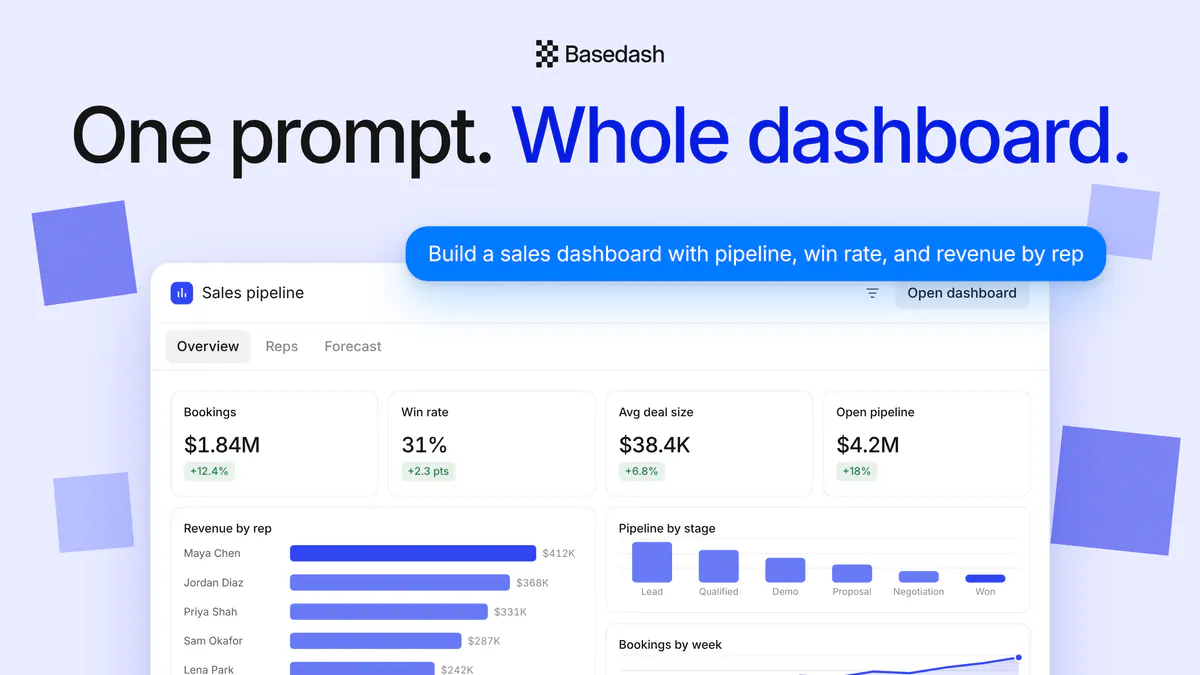
Chat can now do a lot more than answer questions and draft a single chart—it can build and edit whole dashboards for you. Describe what you want, and the assistant creates the dashboard, lays out the charts, adds tabs, and wires up variables and filters, all from plain language. As it works, it renders a live, interactive preview right inside the conversation, complete with tabs, filters, and real chart data, so you can see exactly what you’re getting before you ever leave chat.

Everything respects your existing permissions, and each dashboard the assistant builds is a real dashboard you can open and keep refining. When you’re chatting from Slack, dashboards come through as clean, named links so your team can jump straight to them in one click.

AI answers now use color to highlight what matters

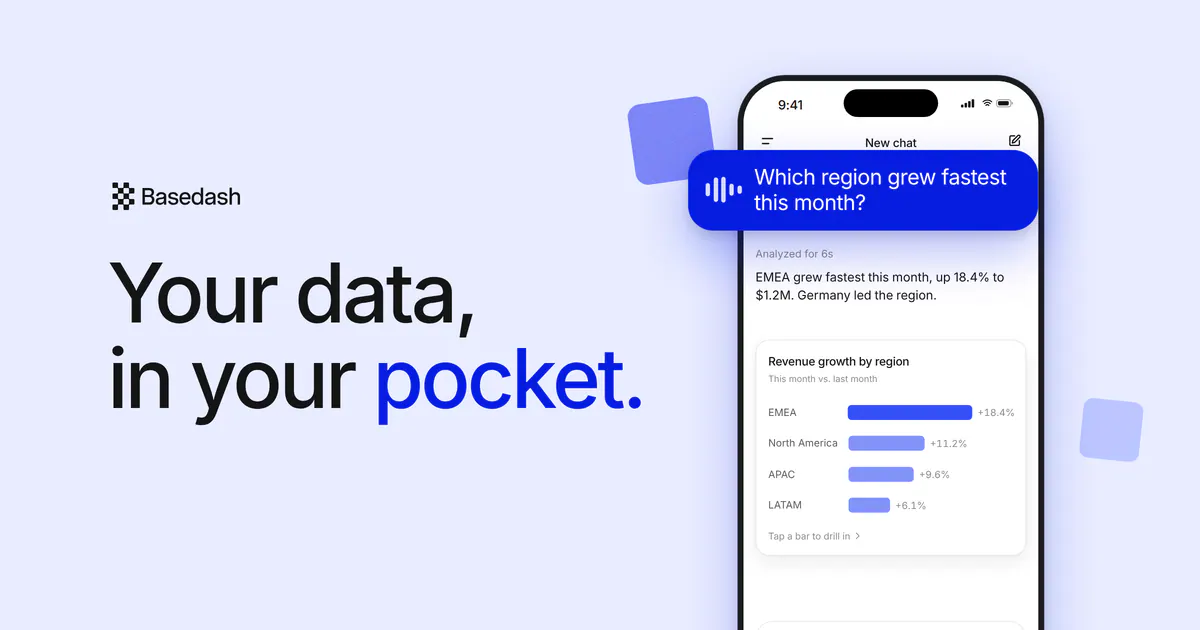
AI-generated responses can now use semantic color to call out the important parts of an answer. Positive results, warnings, and problems render in green, amber, and red, so you can scan a response and immediately see what’s good, what needs attention, and what’s going wrong—instead of reading every line to find the signal.

The colors carry across the places AI shows up: chat, dashboards, charts, insights, and tasks. Answers delivered over email keep the same fixed colors, and in Slack they gracefully fall back to plain text so nothing ever looks broken.

Fixes and improvements

  • Fixed scheduled insights that had silently stopped generating for some organizations, so recurring insights are flowing again.
  • Fixed missing chart images in dashboard, automation, insight, and chat notifications, including cases where the dashboard’s original creator had left the organization.
  • Fixed automation emails delivering without their charts, and made automation run API responses include chart metadata, including multi-source charts.
  • Fixed slow and occasionally failing chart-image requests from the public API.
  • Fixed Slack-created chats getting stuck on the “Slack conversation” placeholder—they’re now named automatically from the thread’s topic.
  • Improved table charts so numbers, currency, and percentages right-align as a single clean value, keeping mixed columns lined up instead of scattered.
  • Made table charts load more smoothly, automatically fetching the next rows as you reach the end of a long list.
  • Added a thinking-step loading indicator to generating chats in the sidebar, so it’s clear which conversations are still working.
  • Fixed pages, including login, breaking after a new release by automatically recovering when an old browser tab requests an outdated asset.
  • Fixed an issue where creating a chart variable could fail when the request was retried.
4 de setembro de 2026

Meet Models: a semantic workspace your whole team (and your AI) can build on

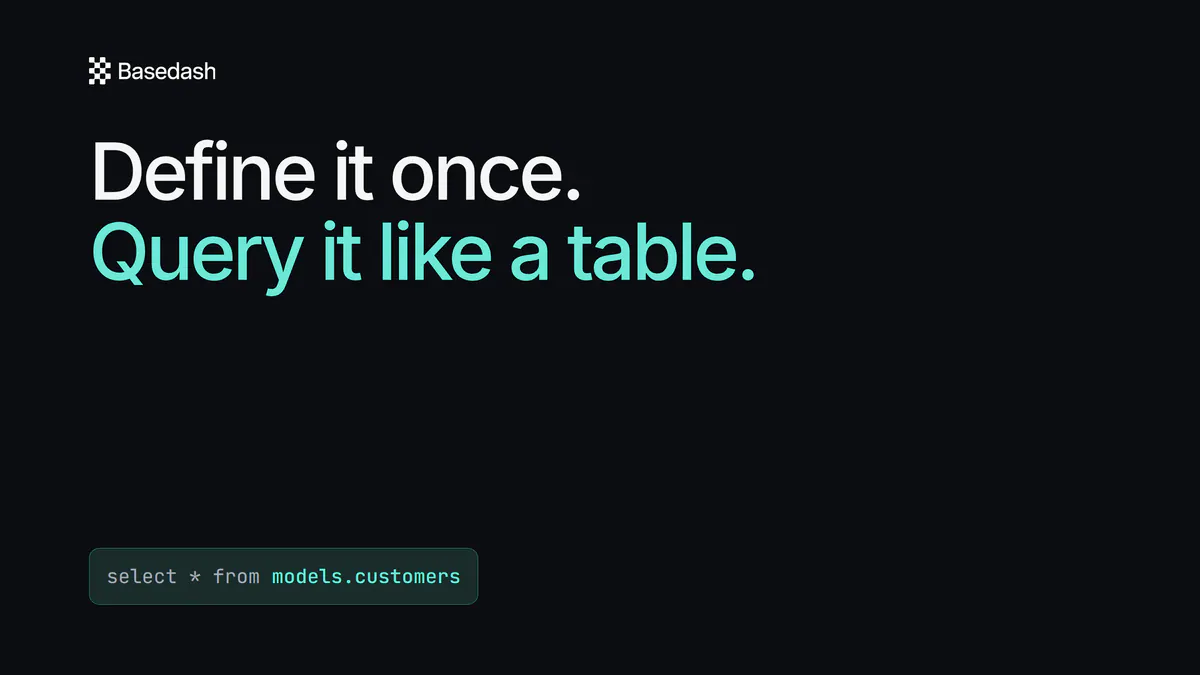
Definitions have grown up. They’re now Models—a top-level workspace that lives right below Data. A model is reusable, governed SQL that captures a core concept in your business, like your customers, orders, or active accounts, so everyone works from the same trusted definition instead of re-deriving it every time. You can reference a model directly in SQL like any other table with select * from models.<name>, and legacy definitions.<name> references migrate over automatically.

Models now carry real semantic meaning. Each one gets dedicated editor views for details, columns, measures, and segments, plus synonyms, a row grain, key columns, relationships, and plain-language usage guidance. The assistant reads all of that context when it answers questions—so it writes more accurate SQL, reaches for the right measures and filters, and stays consistent with how your team actually defines things. Admins who’d rather keep Models hidden can turn it off per organization in settings.

Basedash now speaks French, Spanish, and Portuguese

You can now use Basedash in English, Español, Français, or Português. Pick your language from profile settings and the interface switches instantly, with no page reload, so everyone on your team can work in the language they’re most comfortable in.

Language switching is fast and lightweight: only the language you select loads, so the app stays just as snappy no matter which one you pick.

Let your AI tools build charts and dashboards

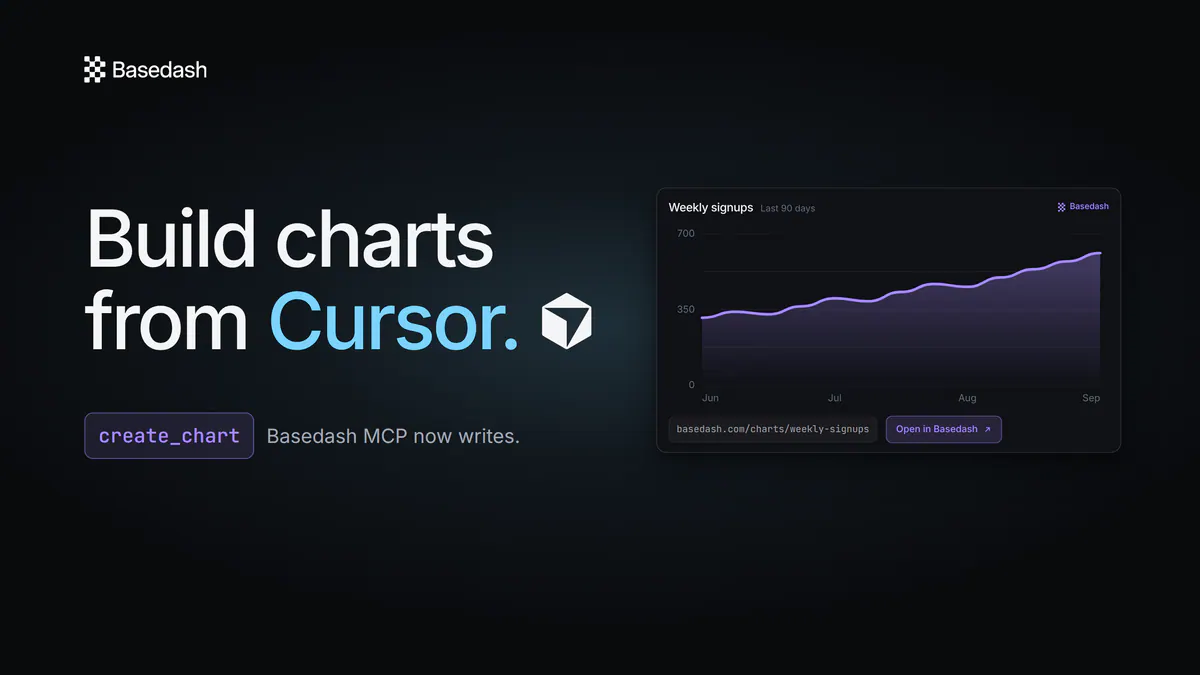
Basedash’s MCP server can now do more than answer questions. Connected AI clients like Claude Code and Cursor can create and edit charts and dashboards directly in your workspace using plain-language instructions. Every created or updated artifact comes back with a durable Basedash link and chart screenshots, so you can jump straight from your AI tool into the real thing.

New read tools for listing and fetching charts and dashboards round out the workflow, and everything respects your existing access controls. Existing MCP connections pick up the new capabilities automatically—there’s no need to re-authorize.

Fixes and improvements

  • Made the dashboards you’re actively viewing refresh faster by prioritizing your chart loads ahead of background refresh work.
  • Added the underlying SQL and sources to every chart the assistant renders in an answer, including multi-source charts.
  • Sped up chat answers so they appear as soon as they’re ready instead of waiting on source attribution to finish.
  • Fixed automation creation so it no longer flashes a “not found” error, and allowed selecting a data-change trigger before its query is configured.
  • Fixed chart edits failing to save on charts that have drill-downs configured.
  • Fixed dragging a chart’s scrollbar accidentally moving the chart around the dashboard.
  • Fixed data source deletion getting stuck on very large schemas.
  • Fixed deleting a dashboard tab twice causing a sync error.
  • Refreshed the login and sign-up screens.
28 de agosto de 2026

See the sources behind every AI answer

When the assistant finishes answering, it no longer leaves a long, expandable trail of thinking steps and tool calls in your way. Completed answers now collapse that timeline into a simple “Analyzed for 1m 12s” summary, so the final response stays front and center. While it’s still working, you’ll continue to see the latest step it’s on.

Next to the copy and feedback buttons there’s a new Sources control. Expanding it shows exactly what the answer was built from—the tables, definitions, charts, data sources, read-only MCP connections, and web pages it drew on—alongside the queries it ran, each with the SQL and a preview of the rows it returned. Any action that changes something, like a mutating query, a new definition or automation, or an update to your AI context, now appears as a clear card beneath the answer and opens a details view when you click it, instead of being buried in inline callouts.

Fixes and improvements

  • Improved the public automations API so a run’s details now return the rendered final answer with chart images.
  • Made variable dropdowns with many options load smoothly by paginating them as you scroll, on dashboards, public dashboards, and variable configuration.
  • Fixed cases where the schema browser and chat could keep showing stale tables after a database sync.
  • Fixed the public AI usage endpoint returning an error for organizations on a shared billing account.
21 de agosto de 2026

Redesigned home pages that get out of your way

Now that the sidebar handles jumping between your existing dashboards, chats, automations, and data, each home page has a clearer job. The Dashboards home replaces the old list—which just duplicated the sidebar—with a “Jump back in” section showing the dashboards you’ve visited most recently, and header search now spans every dashboard and folder, including ones nested deep inside folders. The Automations home became a proper activity feed: failed runs now appear inline instead of quietly disappearing, and a red status dot in the sidebar flags any automation whose last run failed, so problems are easy to spot.

The Data page changed the most. There’s now a single Data home for everyone—admins and members alike—that lays out your warehouse and its connectors, your databases, and your MCP servers as clean cards. It’s built to answer two questions at a glance: what can Basedash see, and is it healthy? Connectors show real data freshness (“Synced 25 minutes ago”), MCP servers show how many tools they expose, anything broken sorts to the top, and a single “N sources need attention” line appears under the title only when something actually needs a look.

A better experience on mobile

We did a focused pass on Basedash on phones. The app now respects iOS safe areas everywhere, so content no longer tucks under notches, home indicators, or the status bar, and the safe-area gutters are painted to match the app chrome. Tapping into a form field no longer triggers Safari’s jarring auto-zoom, and we removed the native scroll-edge blur that could smear the header on newer iOS.

The chat home also got tidied up on small screens, with suggestions moved directly above the composer and spacing that lines up with the rest of the mobile layout.

Favorite your chats

You can now favorite a chat, the same way you already can with dashboards, charts, folders, and automations. Favorite or unfavorite from the chat list’s context menu or the chat page header (the Alt+F shortcut works too), and your favorited chats show up in the sidebar’s Favorites section for quick access. It’s a small thing that makes the conversations you keep coming back to much easier to find.

Fixes and improvements

  • Polished the animations when sending and receiving chat messages.
  • Fixed cases where live chat updates could stop arriving while a very large message was being written.
  • Fixed scheduled automations and AI queries that could return stale, out-of-date numbers when their SQL used time-based functions.
  • Fixed overflowing file-type labels on chat attachments like .xlsx files.
  • Fixed a crash when creating a table definition with a name that was already in use.
  • Fixed an error when archiving a chart that had already been archived.
  • Fixed Automations disappearing from the sidebar in some embedded setups.
  • Fixed chat notifications crashing on some Android browsers.
14 de agosto de 2026

A sidebar that follows what you’re working on

The app sidebar now stays anchored to your top-level modules—Chat, Dashboards, Automations, Insights, and Data—while the list underneath it changes to match wherever you are. Open Dashboards and you’ll see your dashboard tree; jump to Automations and the sidebar shows your automations, right where you’d expect them. Your favorites stay pinned above the list no matter which module you’re in.

Settings now opens into its own focused navigation with a clear “Back to app” control, so you never lose your place. And for members, the Data section only surfaces the databases and sources you actually have access to, routing you straight to your first available connection.

Your dashboards stay full-screen

The AI chat panel used to reopen every time you loaded a page or switched sections, even after you’d deliberately closed it. Now your last choice sticks: close the panel and it stays closed across navigations, reloads, and sessions, so you can view a finished dashboard exactly the way you built it. When the panel is closed, a labeled “Chat” button in the header makes it easy to bring back whenever you want it.

Chat still shows up where it matters most. On an empty dashboard—where chat is the fastest way to build your first charts—the panel opens automatically, and explicit AI actions like “Fix with AI” still bring it forward.

Modern MCP and OAuth for connecting AI tools

Connecting AI clients to your Basedash data over MCP is now more modern and dependable. We moved to the latest MCP protocol revision, kept long-running requests alive so they don’t drop mid-flight, automatically negotiate protocol versions, and page through large tool lists cleanly.

Authentication got an upgrade too. We added support for OAuth Client ID Metadata Documents, and fixed the loopback OAuth flow so clients like Claude Code can connect without a hitch. Connections stay valid across token rotations, and setup errors now surface clearly when something needs your attention.

Fixes and improvements

  • Fixed public insights returning an error for charts whose SQL uses WINDOW or RETURNING.
  • Fixed chats failing when you attach a .sql file (and other text files) on OpenAI models.
  • Fixed chat responses that could abort mid-answer after an automatic retry.
  • Fixed charts briefly showing an error while a data source connection was still loading.
  • Fixed Slack reports and automations that kept failing when their channel was archived or deleted—Basedash now skips gracefully and lets you pick a new channel.
  • Fixed file attachment options appearing in chat when your zero-data-retention settings made them unavailable.
  • Removed a non-functional Microsoft Teams placeholder from organization settings.
  • Cleaned up the organization settings danger zone when deletion is locked by an active subscription.