Introducing scheduled CSV exports in Basedash
Max Musing
 Max MusingFounder and CEO of Basedash
· October 24, 2026
Max MusingFounder and CEO of Basedash
· October 24, 2026
Max Musing
Max MusingFounder and CEO of Basedash
· October 24, 2026
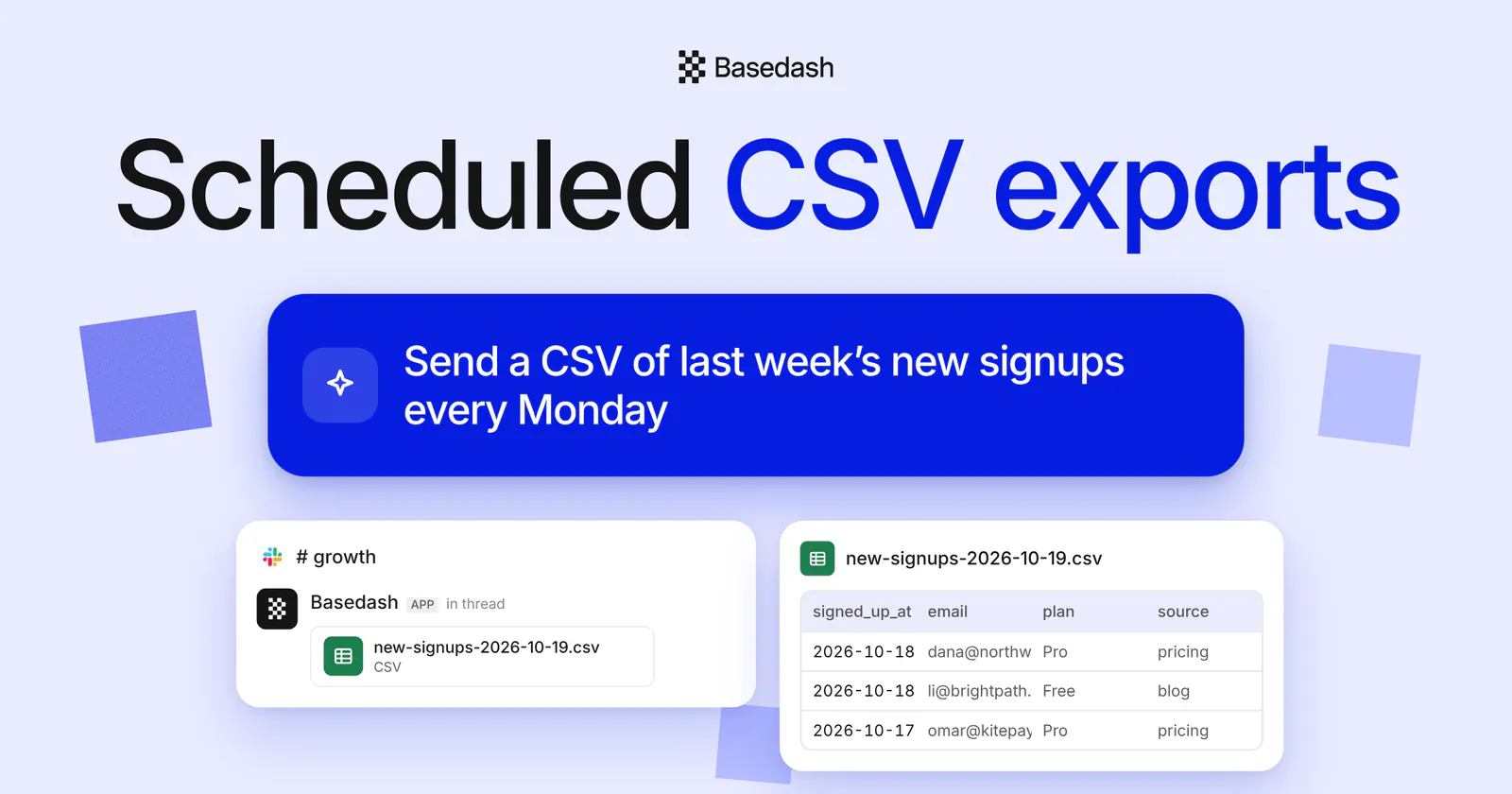
Today we’re launching scheduled CSV exports in Basedash. Automations can now send CSV files. Ask for one in the instructions, and every run builds the file from your data and delivers it to Slack or email.
A summary and a chart answer most questions, but sometimes the people getting the report need the rows themselves, to filter in a spreadsheet, reconcile against another system, or pass along. Now the automation that writes the summary can send the file too.
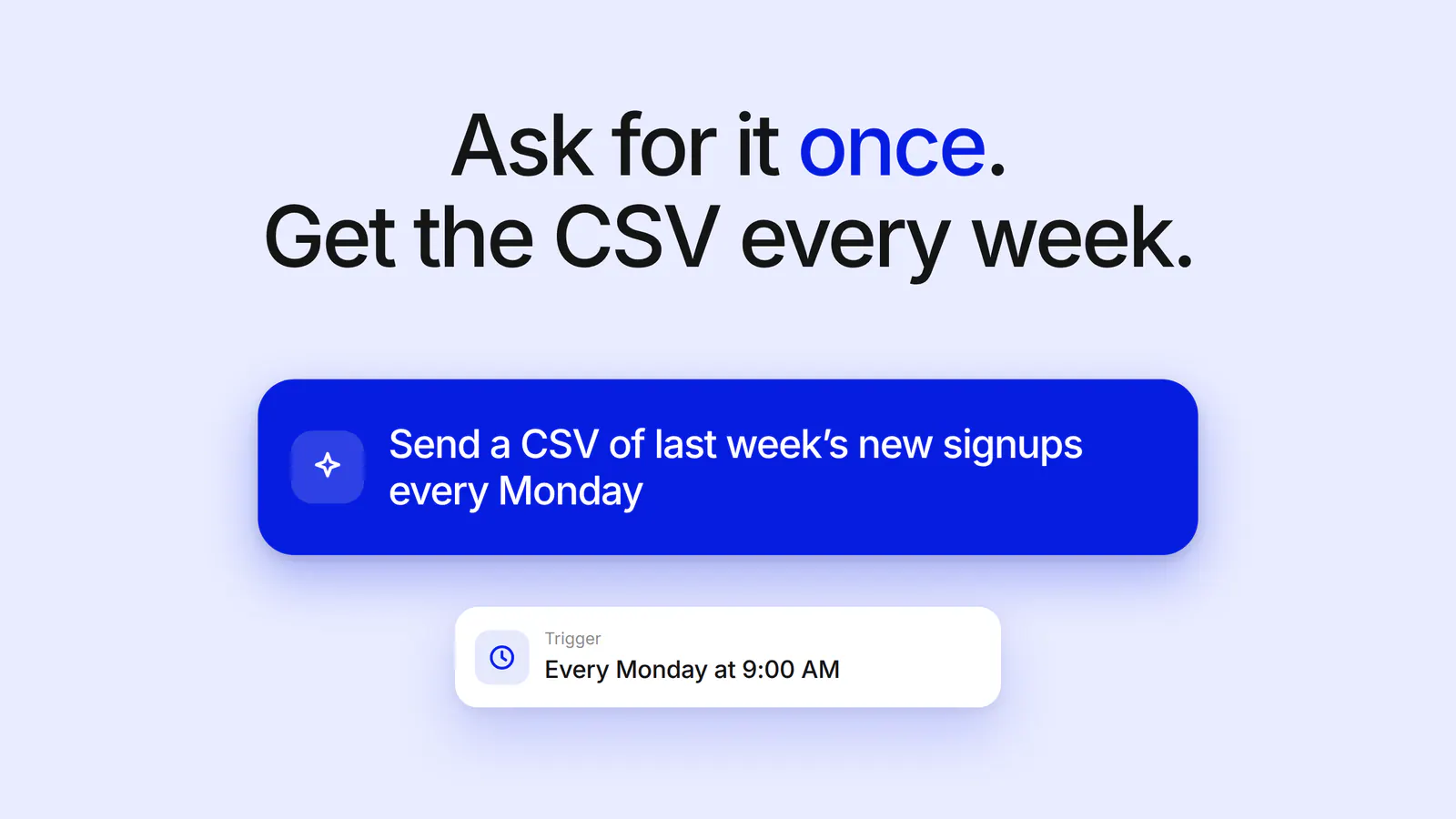
There’s no separate export setting to configure. Write the CSV into the automation’s instructions, the same way you’d ask for anything else:
Each run builds the file from your data, the same way chat does.
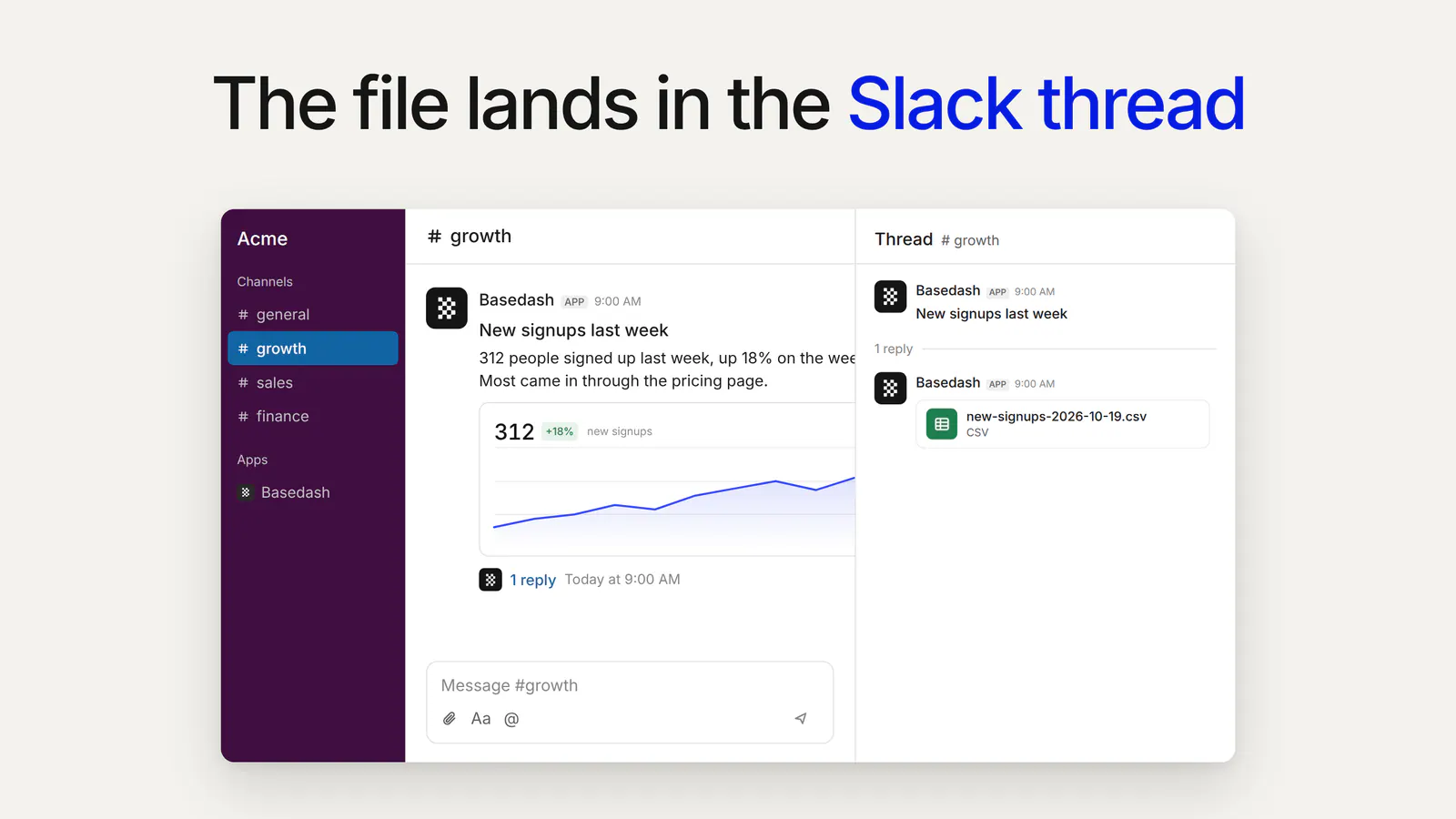
When an automation posts to Slack, the summary goes in the channel and the CSV is attached in the message’s thread. The channel stays readable, and anyone who wants the rows opens the thread.
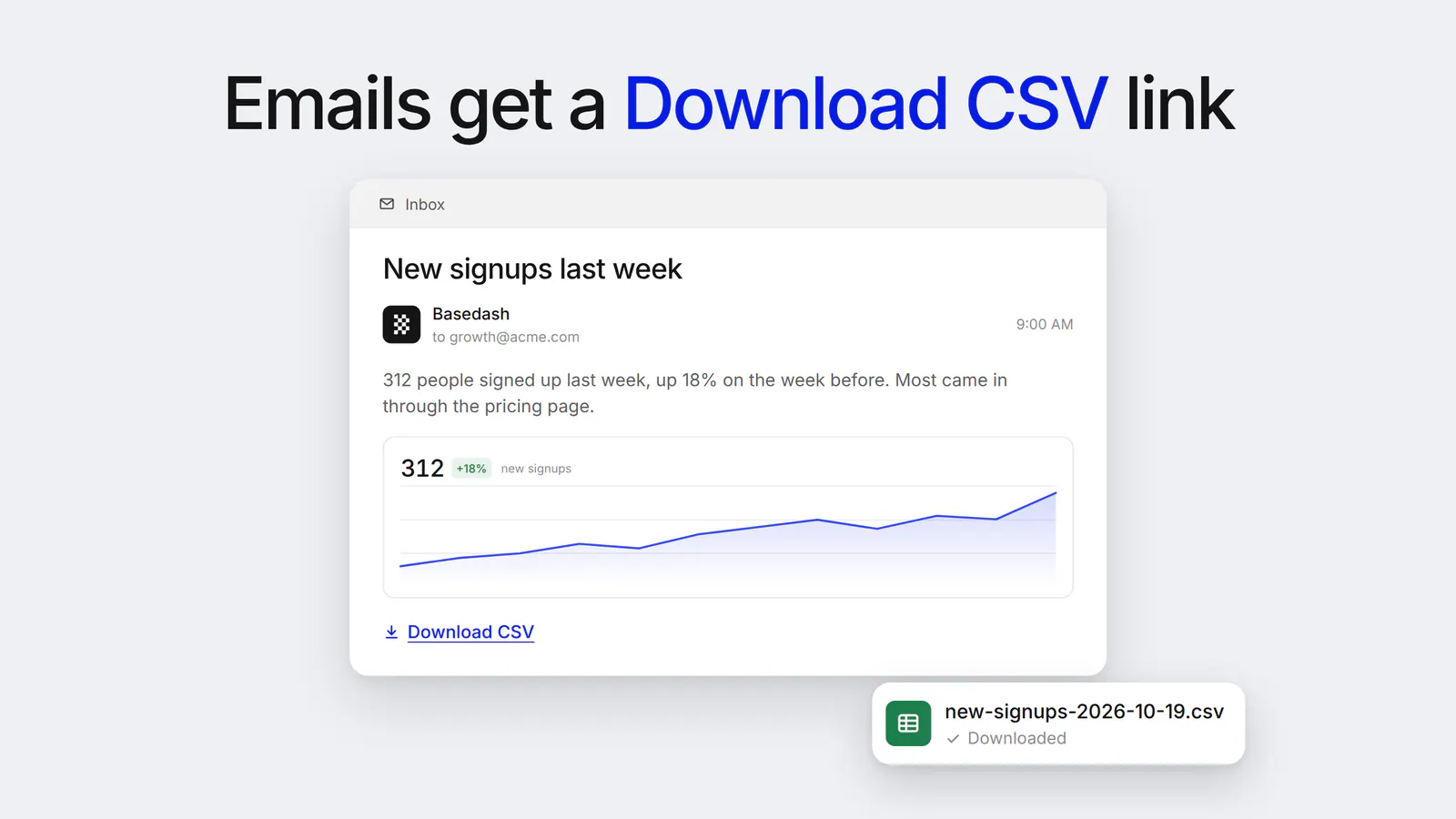
Emails from the automation include a Download CSV link under the summary. Downloads go through Basedash, so recipients need access to the automation to open them.
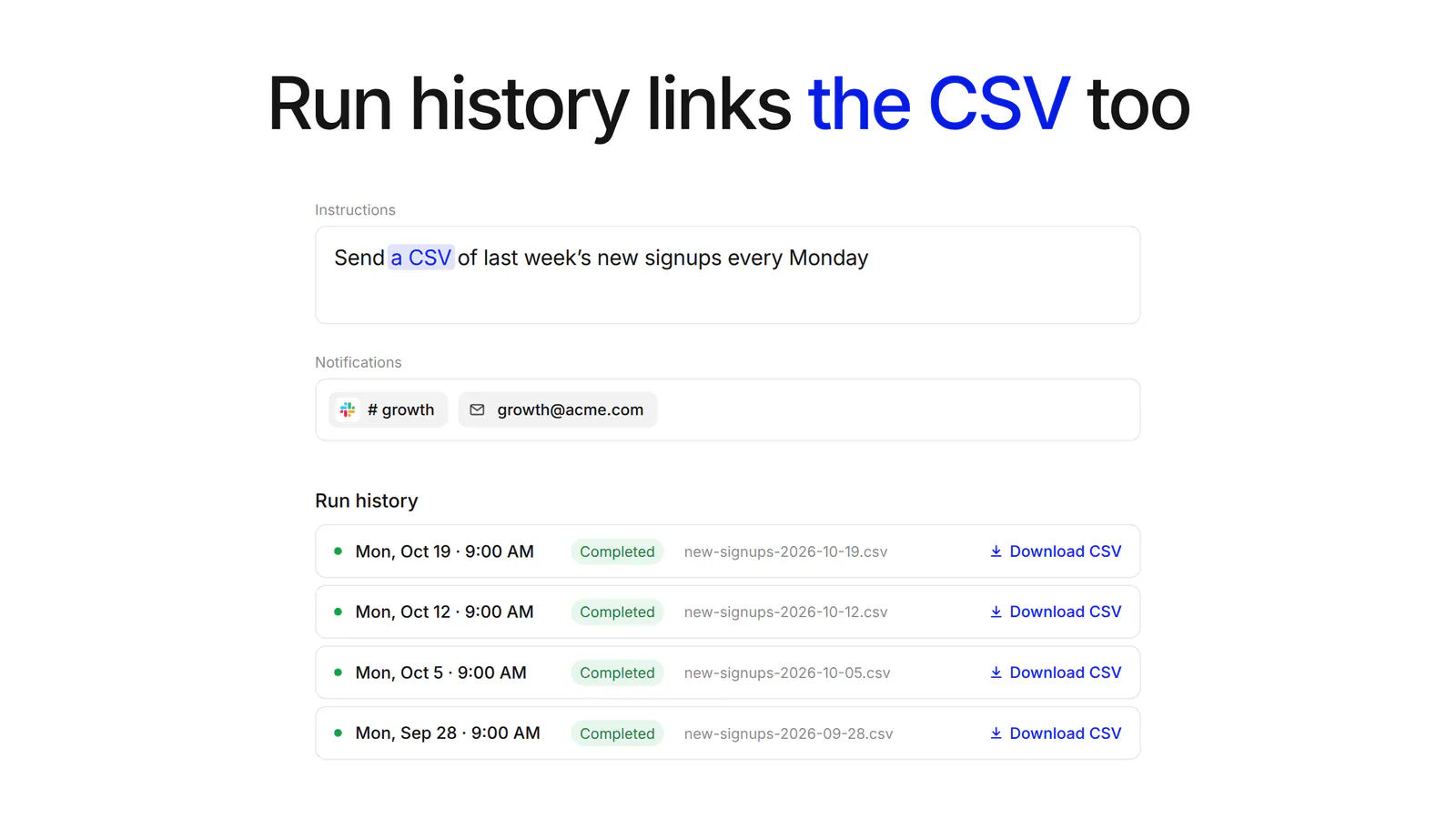
The automation’s run history includes a Download CSV link for each run, so you can grab the file from any past run.
And if a run builds the CSV but stops before writing its summary, the file still goes out.
Scheduled CSV exports are in Basedash today.
One setup note for Slack: file uploads require a workspace admin to approve the Slack app update prompt. Until then, Slack replies include a download link instead of the attached file.
For more on automations, see the Automations feature page.
Ask for it once. Get the CSV every week.
Written by

Founder and CEO of Basedash
Max Musing is the founder and CEO of Basedash, an AI-native business intelligence platform designed to help teams explore analytics and build dashboards without writing SQL. His work focuses on applying large language models to structured data systems, improving query reliability, and building governed analytics workflows for production environments.
Basedash lets you build charts, dashboards, and reports in seconds using all your data.