Skip to content

October 9, 2026

Message Basedash directly in Slack

You can now chat with Basedash one-on-one in Slack. Open the Basedash app’s Messages tab, pick a suggested prompt or type your own question, and get the same answers, charts, and analysis you’d get in a channel thread, without @mentioning the bot in front of everyone.

CSV files now come through as real Slack files. When you ask Basedash for a CSV in a Slack thread, the file is attached right in the conversation, ready to open or forward. Workspace admins will see a “Slack update available” prompt in Basedash; approve the new permissions to turn on file uploads. Until then, replies keep their download link.

Automations can deliver CSV files

Scheduled automations can now create downloadable CSV exports, the same way chat can. Ask for a CSV in an automation’s instructions, like “send a CSV of last week’s new signups every Monday”, and each run builds the file from your data.

Every delivery includes the file. Slack messages attach the CSV in the message’s thread, and emails and the automation’s run history include a Download CSV link. If a run builds the CSV but stops before writing its summary, the file is still delivered. Downloads go through Basedash, so recipients still need access to the automation to open them.

Stopping a response keeps what’s already done

Pressing Stop in chat no longer erases the turn. Your question and the partial answer stay in the conversation with a “Stopped” label, so you can read what the assistant found before you redirected it. On your next message, the assistant knows the previous answer was cut short and that any charts or edits it started may be half-finished, so it picks up from there instead of starting over.

Long analyses also end more gracefully. Chat can now take up to 50 steps on a single question, up from 30, and when it gets close to the limit it wraps up on its own: it summarizes what it found and lists what’s still unfinished, instead of ending with a bare “Continue” button.

Insights reads like a newspaper

The Insights feed has a new borderless, editorial layout. The top story leads the page, the rest flow in two columns separated by thin rules, charts sit flush with their captions, and each preview shows as much text as fits beside its chart. When you open the sidebar or chat panel, the feed switches to one column instead of cramping the stories. Insight pages get larger headlines and more readable body text, on desktop and mobile.

Large Insights feeds now load in pages with a Show more button, so the page opens quickly no matter how many insights you have. Scheduled insights also work across all of your data again: organizations with several data sources get findings from every connection the insight’s creator can access, not just one.

Fixes and improvements

  • Clarified chat error messages when a data source is down. Chat now names the data source it couldn’t connect to, instead of showing a generic error or blaming the AI model.
  • Added a Retry button to charts that fail with “Unable to connect to database”, so you can recover without reloading the page.
  • Fixed long chats and automations failing with “Your input exceeds the context window”.
  • Fixed chats failing with “Invalid time value” when a table contained dates far in the future.
  • Fixed insights that could go missing when they were being generated during a Basedash update. They now retry and finish.
  • Applied schema, table, and column access rules to organization admins too, so a “no access” rule now covers everyone. Admins can still see every object in the access settings to change its rules.
  • Improved AI-written SQL for MotherDuck databases connected through the PostgreSQL connector, so queries use DuckDB syntax instead of failing on Postgres-only functions.
  • Made new charts open the dashboard chat with your cursor in the message box, so you can describe the chart right away.
  • Added a “This dashboard has been deleted” state for dashboards shown in chat, instead of a blank preview.
  • Fixed new dashboard headers and blocks that could appear and then disappear until you reloaded.
  • Fixed public dashboards embedded on other websites failing to load charts in Safari.
  • Fixed record dropdown filters on public dashboards showing “No values found”.
  • Polished the mobile experience: the Back button works after redirects, chart menus are reachable on touch screens, and menu items no longer need two taps on iOS.
  • Restyled the sign-in pages for connecting MCP clients to match Basedash, with light and dark mode and translations.
  • Refreshed icons across the app, with clearer symbols, filled radio buttons, and evenly spaced keyboard shortcut keys.
October 2, 2026

Sharper, more decisive answers with GPT-6.1 Sol

Chat now runs on OpenAI’s GPT-6.1 Sol by default, with updated instructions written for it. In our testing it answered real analytics questions more accurately than GPT-6 Sol, and it gets straight to work instead of stopping to ask about details it can work out itself. Ask about “April” or “last quarter” and it uses the most recent one. Ask about churn without a saved definition and it tells you which definition it used, names the main alternative, and shows both numbers when they differ.

Answers also fit the question better. Simple questions get a sentence or two, longer analyses keep their tables and lists, and filler phrases are gone. If you tell the assistant how to do something in a conversation, that instruction now takes priority over saved skills and context. There’s nothing to configure: chat, dashboards, and insights all use the new model automatically.

Every connector gets its own home page

Picking a connector from Add data source now opens a full overview page instead of a bare setup screen. You’ll see what the connector is, a single Connect button, links to its documentation and any existing connections, and previews of what you can build with it: a dashboard, a question answered in plain language, a Slack alert, and a question that combines it with another source. The most popular connectors get previews written in their own vocabulary, so you can picture your data in Basedash before you connect.

Once a connector is set up, admins can manage it from its page without leaving Basedash. Pause or resume syncing, set the sync frequency anywhere from every 15 minutes to once a day, or start a manual sync. The new Synced tables section lets you choose exactly which schemas, tables, and columns get synced and how new source data is handled. An Access section, scoped to just that connector’s data, controls who can see its schemas, tables, and columns.

More control over embedded Basedash

Two new embed options make it easier to fit Basedash into your product. hide_sidebar=true removes the left sidebar entirely, with no hover peek, toggle, or shortcut to bring it back. You can also open the embed on a specific page by passing dashboard_id, automation_id, insight_id, model_id, or chat_id, so users land right where you want them.

Full-app JWT embeds now work in Safari and in browsers that block third-party cookies, like Chrome incognito, instead of failing to load. We also narrowed hide_chat: it still hides the Chat page and general chat, but the AI panel on dashboards and in the chart editor stays available, so embedded users can keep building and editing dashboards with AI.

Subscriptions always deliver fresh data

Scheduled dashboard and chart subscriptions now run their queries at delivery time. Slack and email deliveries no longer reuse older cached results, so what lands in your inbox reflects your data as of when it was sent.

The subscription dialog also shows which filters a delivery will use. Deliveries always use the dashboard’s saved defaults rather than whatever filters you have applied at the moment, so the dialog lists the date range, interval, and each variable’s default value. If a delivery has been showing a different period than you expected, you can see why and update the dashboard defaults.

Fixes and improvements

  • Added undo for deleting charts. Press Cmd+Z after removing a chart from a dashboard to restore it to the same tab and spot.
  • Made text in tables and detail charts selectable by click-dragging on dashboards you can edit, instead of moving the whole card.
  • Fixed the chart drill-down dialog running off the screen on phones, and made tapping outside it close it.
  • Fixed charts inside finished automation runs staying on “Generating…” forever. Expanding a run now loads its charts, with a regular loader in place of the misleading label.
  • Fixed a crash on the Automations page for organizations with many charts in recent runs.
  • Fixed chart drill-downs that could show out-of-date records to some viewers.
  • Kept charts with saved filter defaults refreshing in the background instead of going stale.
  • Fixed dashboards where several charts could fail together while loading.
  • Fixed PlanetScale syncs failing on databases with more than one schema.
  • Fixed ClickHouse connections failing on every query when the database user’s settings profile locks query time limits.
  • Fixed connecting file-based connectors like Amazon S3, Google Cloud Storage, Azure Blob Storage, email, and FTP, and made the Authorize page update as soon as you finish connecting.
  • Made AI-created charts use the colors you ask for. Ask for red bars and you get red bars.
  • Added the option for MCP clients to place a new chart on a specific dashboard tab, or in your Drafts when no dashboard is given.
  • Limited the chart editor’s AI to dashboards the current member can access.
  • Made opening chats from the sidebar feel faster, without extra background requests while you move your cursor over the list.
  • Improved sidebar scrolling so the main navigation scrolls with the rest and the scrollbar no longer covers buttons.
September 25, 2026

Teammates can join your organization with their work email

Getting your team into Basedash no longer depends on sending every invite by hand. When a teammate signs up with a verified email at your company’s domain, Basedash now shows them a “Join your team” step with your organization, its name, and its member count. They can join in one click or create a separate organization instead. No more duplicate, empty workspaces from colleagues who signed up without an invite.

New organizations created with a work email have joining turned on by default, and you can turn it off during setup. For existing organizations, admins can turn it on from Members settings with “Allow anyone with a verified @yourdomain email to join”. People who join this way always start as members, personal email providers like Gmail and Outlook are never eligible, and anyone who was previously removed still needs a fresh invite.

Give every bar its own color

Single-series bar and funnel charts have a new “Vary colors by category” setting. Turn it on and each bar gets its own color, based on its category label. You don’t need a breakdown to get multiple colors anymore. Custom colors are saved against the category itself, so “Closed lost” stays red when filters change the numbers, and every teammate sees the same colors.

The AI assistant knows about the setting too. Ask it to color bars differently in chat, dashboards, insights, the chart editor, or over MCP, and it will use this option instead of a breakdown. We also fixed two related color issues: duplicating a dashboard, tab, or chart now keeps its custom colors, and automatic colors no longer reuse a color you’ve already picked for another bar.

Smarter, faster AI answers with GPT-6 Sol

Chat now runs on OpenAI’s newest model, GPT-6 Sol, by default. In our testing it gave noticeably more accurate answers to real analytics questions and responded about a third faster than the previous default. The lightweight AI that handles tasks like naming your chats now runs on GPT-6 Luna.

There’s nothing to configure. Chat, dashboards, and insights all pick up the new models automatically.

Fixes and improvements

  • Added audit log entries for changes to organization AI context, AI skills, and data catalog descriptions, including edits made through the AI assistant or the public API.
  • Showed the AI skills the assistant read in a chat’s sources, so you can check which instructions shaped an answer.
  • Stopped source chips from linking to pages the viewer can’t open, such as admin-only settings or data pages inside an embed.
  • Fixed favoriting dashboards in embedded Basedash, along with a case where a blocked action could leave embedded chat and dashboard edits stuck until the page was reloaded.
  • Fixed chats that started with an attachment staying titled “New chat” instead of getting a descriptive name.
  • Made chart and insight refreshes retry automatically when a Postgres read replica cancels a query, instead of leaving results stale.
  • Fixed a blank screen some people saw when the app stalled while loading. Slow loads now explain what’s happening and offer a reload.
  • Fixed the blurred page header in the iPhone Home Screen app on iOS 26.
  • Centered the Hide schema icon in the data sidebar.
  • Updated the “Continue with Google” button with Google’s current logo.
September 11, 2026

Build entire dashboards straight from chat

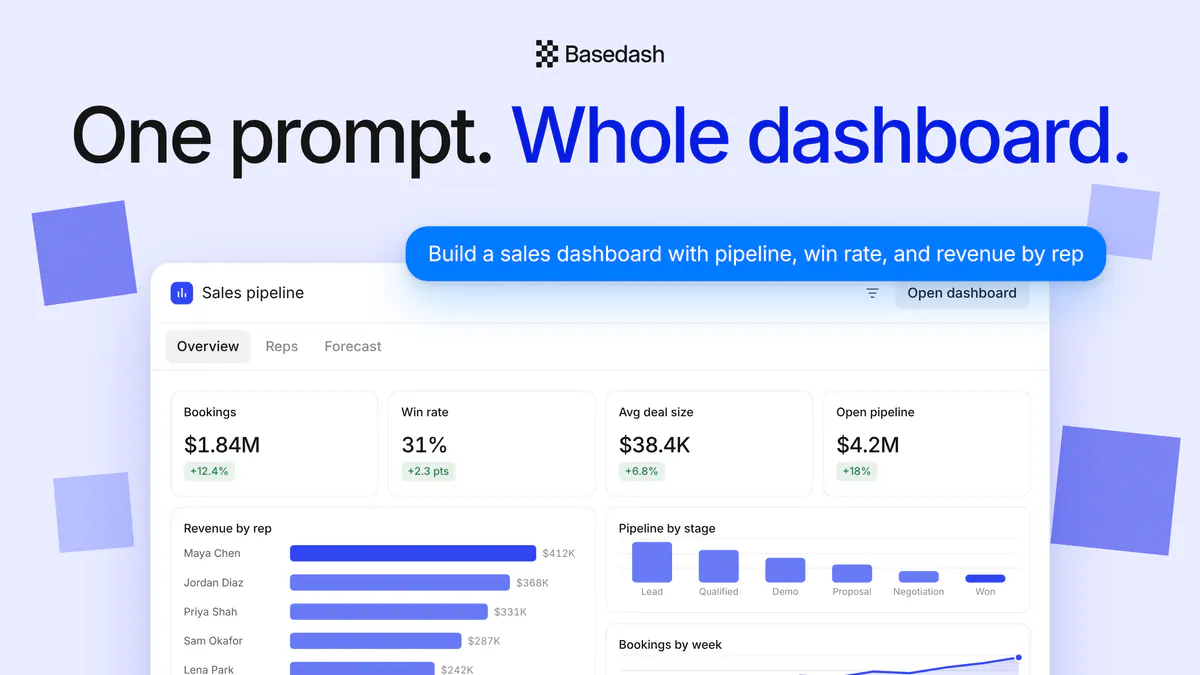
Chat can now do a lot more than answer questions and draft a single chart—it can build and edit whole dashboards for you. Describe what you want, and the assistant creates the dashboard, lays out the charts, adds tabs, and wires up variables and filters, all from plain language. As it works, it renders a live, interactive preview right inside the conversation, complete with tabs, filters, and real chart data, so you can see exactly what you’re getting before you ever leave chat.

Everything respects your existing permissions, and each dashboard the assistant builds is a real dashboard you can open and keep refining. When you’re chatting from Slack, dashboards come through as clean, named links so your team can jump straight to them in one click.

AI answers now use color to highlight what matters

AI-generated responses can now use semantic color to call out the important parts of an answer. Positive results, warnings, and problems render in green, amber, and red, so you can scan a response and immediately see what’s good, what needs attention, and what’s going wrong—instead of reading every line to find the signal.

The colors carry across the places AI shows up: chat, dashboards, charts, insights, and tasks. Answers delivered over email keep the same fixed colors, and in Slack they gracefully fall back to plain text so nothing ever looks broken.

Fixes and improvements

  • Fixed scheduled insights that had silently stopped generating for some organizations, so recurring insights are flowing again.
  • Fixed missing chart images in dashboard, automation, insight, and chat notifications, including cases where the dashboard’s original creator had left the organization.
  • Fixed automation emails delivering without their charts, and made automation run API responses include chart metadata, including multi-source charts.
  • Fixed slow and occasionally failing chart-image requests from the public API.
  • Fixed Slack-created chats getting stuck on the “Slack conversation” placeholder—they’re now named automatically from the thread’s topic.
  • Improved table charts so numbers, currency, and percentages right-align as a single clean value, keeping mixed columns lined up instead of scattered.
  • Made table charts load more smoothly, automatically fetching the next rows as you reach the end of a long list.
  • Added a thinking-step loading indicator to generating chats in the sidebar, so it’s clear which conversations are still working.
  • Fixed pages, including login, breaking after a new release by automatically recovering when an old browser tab requests an outdated asset.
  • Fixed an issue where creating a chart variable could fail when the request was retried.
September 4, 2026

Meet Models: a semantic workspace your whole team (and your AI) can build on

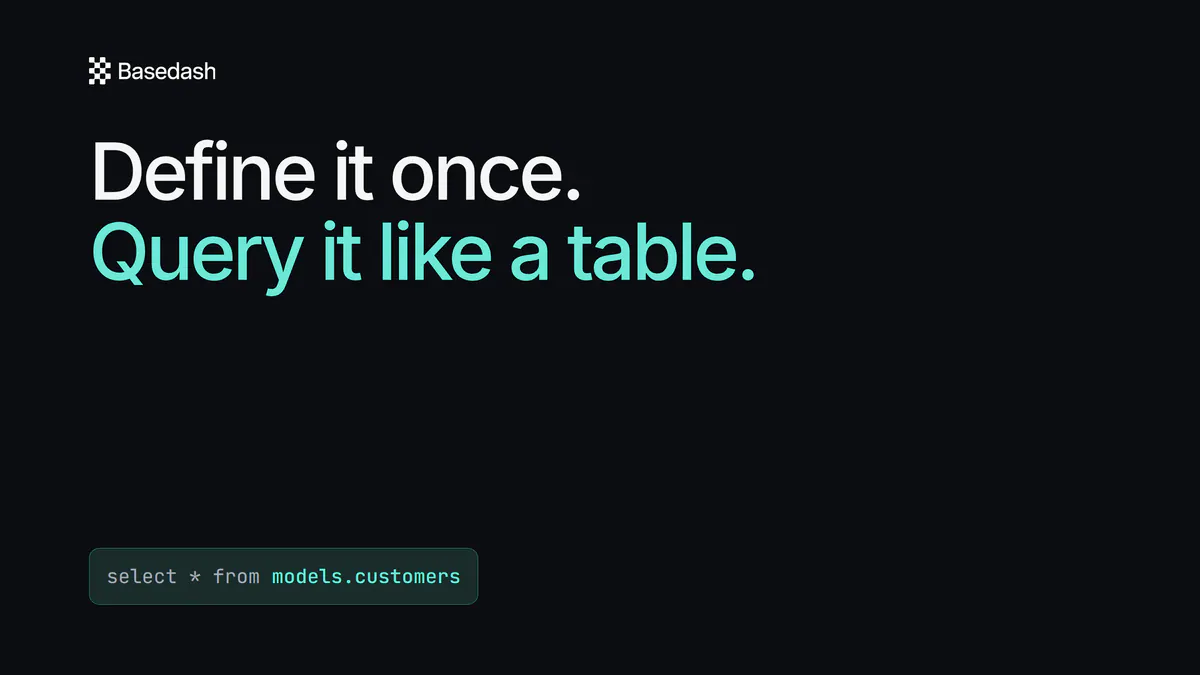
Definitions have grown up. They’re now Models—a top-level workspace that lives right below Data. A model is reusable, governed SQL that captures a core concept in your business, like your customers, orders, or active accounts, so everyone works from the same trusted definition instead of re-deriving it every time. You can reference a model directly in SQL like any other table with select * from models.<name>, and legacy definitions.<name> references migrate over automatically.

Models now carry real semantic meaning. Each one gets dedicated editor views for details, columns, measures, and segments, plus synonyms, a row grain, key columns, relationships, and plain-language usage guidance. The assistant reads all of that context when it answers questions—so it writes more accurate SQL, reaches for the right measures and filters, and stays consistent with how your team actually defines things. Admins who’d rather keep Models hidden can turn it off per organization in settings.

Basedash now speaks French, Spanish, and Portuguese

You can now use Basedash in English, Español, Français, or Português. Pick your language from profile settings and the interface switches instantly, with no page reload, so everyone on your team can work in the language they’re most comfortable in.

Language switching is fast and lightweight: only the language you select loads, so the app stays just as snappy no matter which one you pick.

Let your AI tools build charts and dashboards

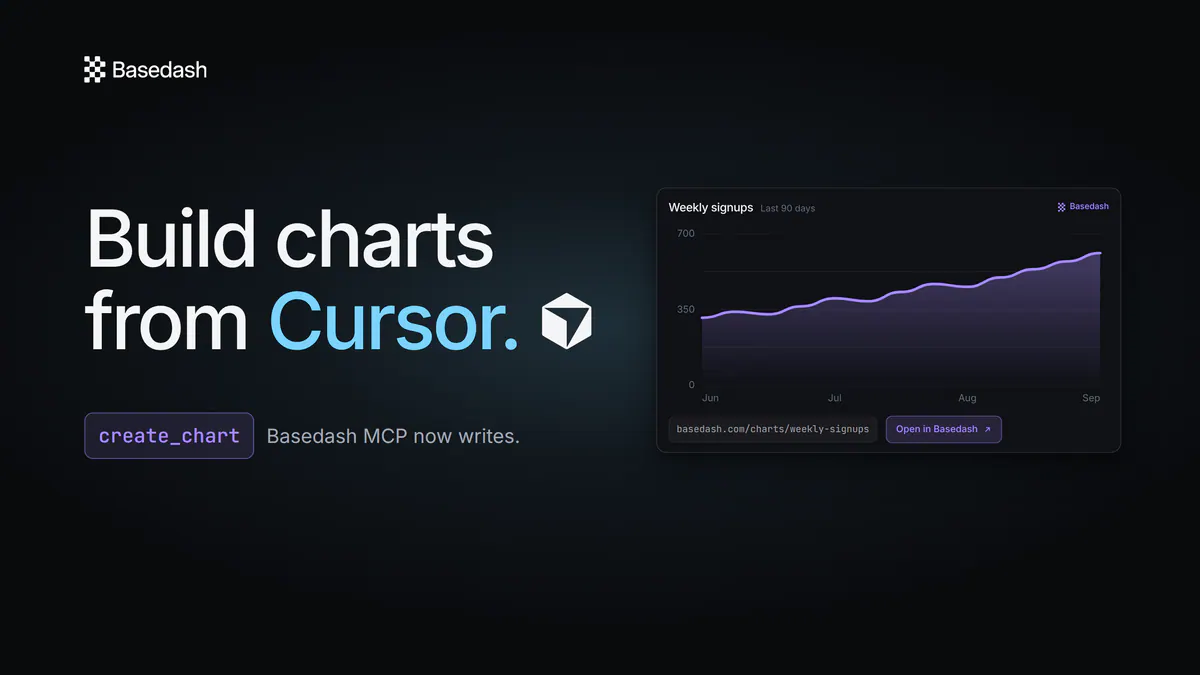
Basedash’s MCP server can now do more than answer questions. Connected AI clients like Claude Code and Cursor can create and edit charts and dashboards directly in your workspace using plain-language instructions. Every created or updated artifact comes back with a durable Basedash link and chart screenshots, so you can jump straight from your AI tool into the real thing.

New read tools for listing and fetching charts and dashboards round out the workflow, and everything respects your existing access controls. Existing MCP connections pick up the new capabilities automatically—there’s no need to re-authorize.

Fixes and improvements

  • Made the dashboards you’re actively viewing refresh faster by prioritizing your chart loads ahead of background refresh work.
  • Added the underlying SQL and sources to every chart the assistant renders in an answer, including multi-source charts.
  • Sped up chat answers so they appear as soon as they’re ready instead of waiting on source attribution to finish.
  • Fixed automation creation so it no longer flashes a “not found” error, and allowed selecting a data-change trigger before its query is configured.
  • Fixed chart edits failing to save on charts that have drill-downs configured.
  • Fixed dragging a chart’s scrollbar accidentally moving the chart around the dashboard.
  • Fixed data source deletion getting stuck on very large schemas.
  • Fixed deleting a dashboard tab twice causing a sync error.
  • Refreshed the login and sign-up screens.